The ChristChant console now comes in 12 new themes, and you can make the whole console bigger or smaller with Interface Scale. Watch the 1-minute video on YouTube.
Where to find them
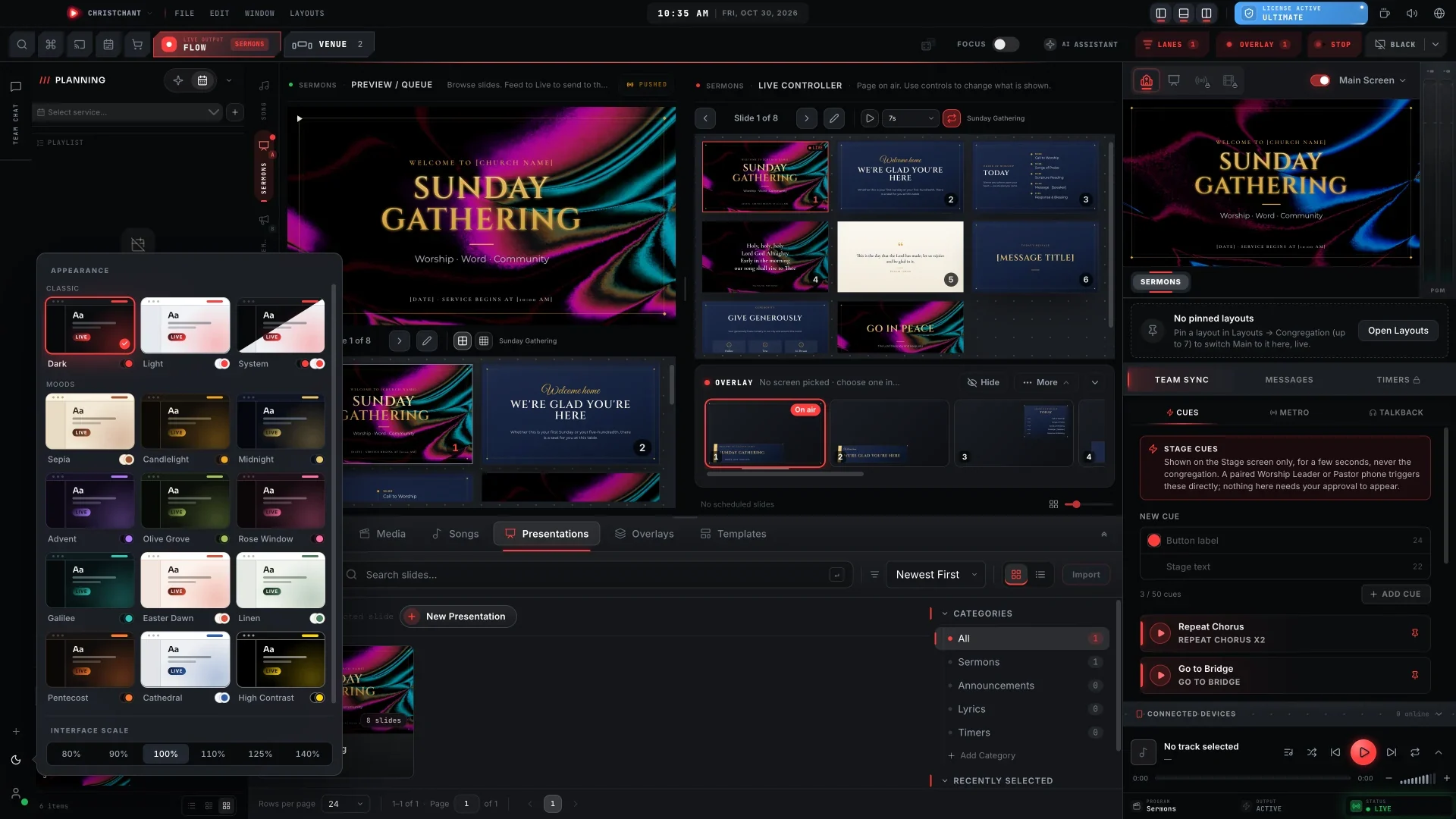
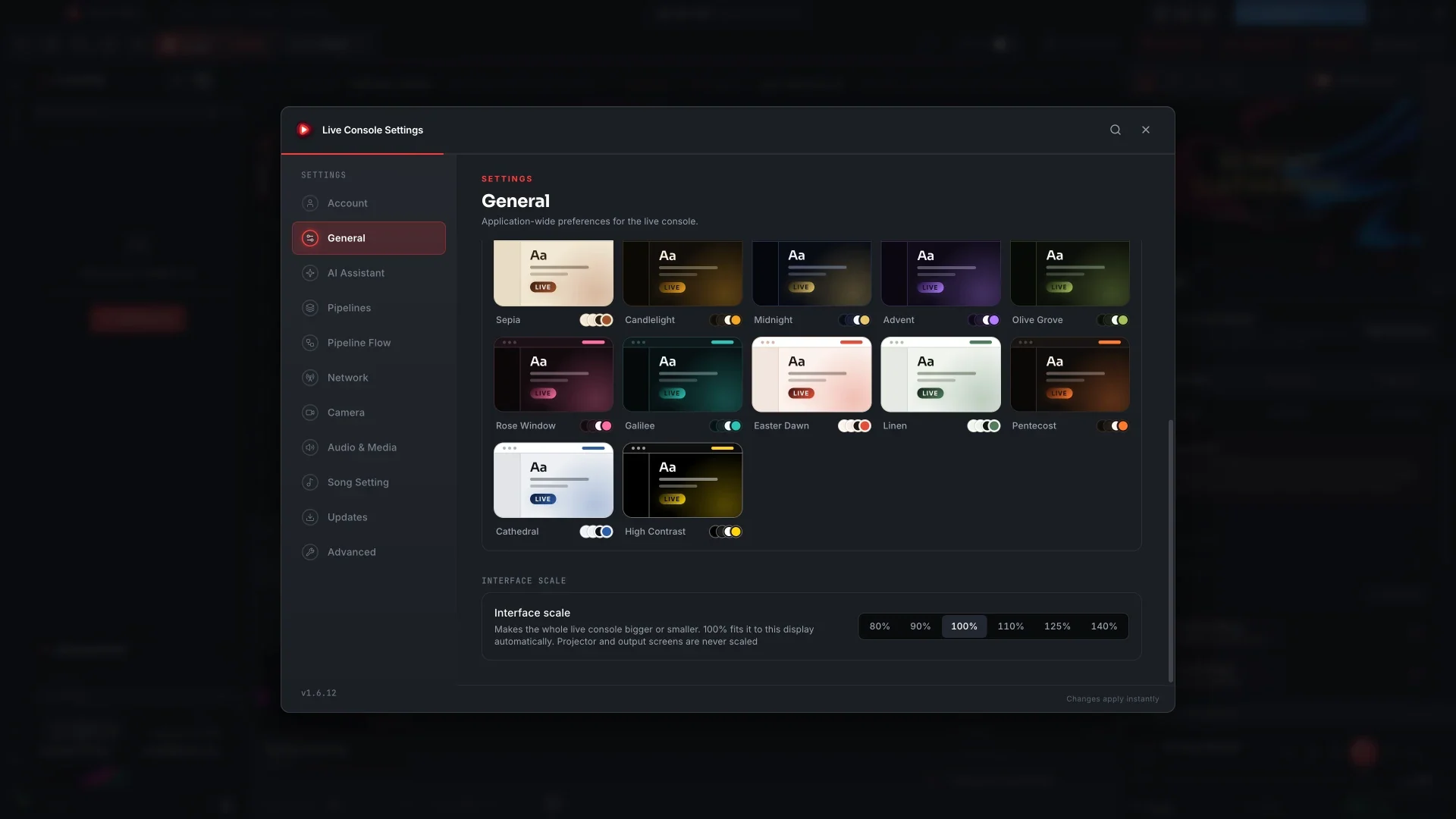
Open Settings › General › Display. Under Appearance you'll find the three Classic options (Dark, Light and System) and a new Moods row with the 12 new themes. Each card is a small preview of the console in that theme. Click one and the console changes straight away.
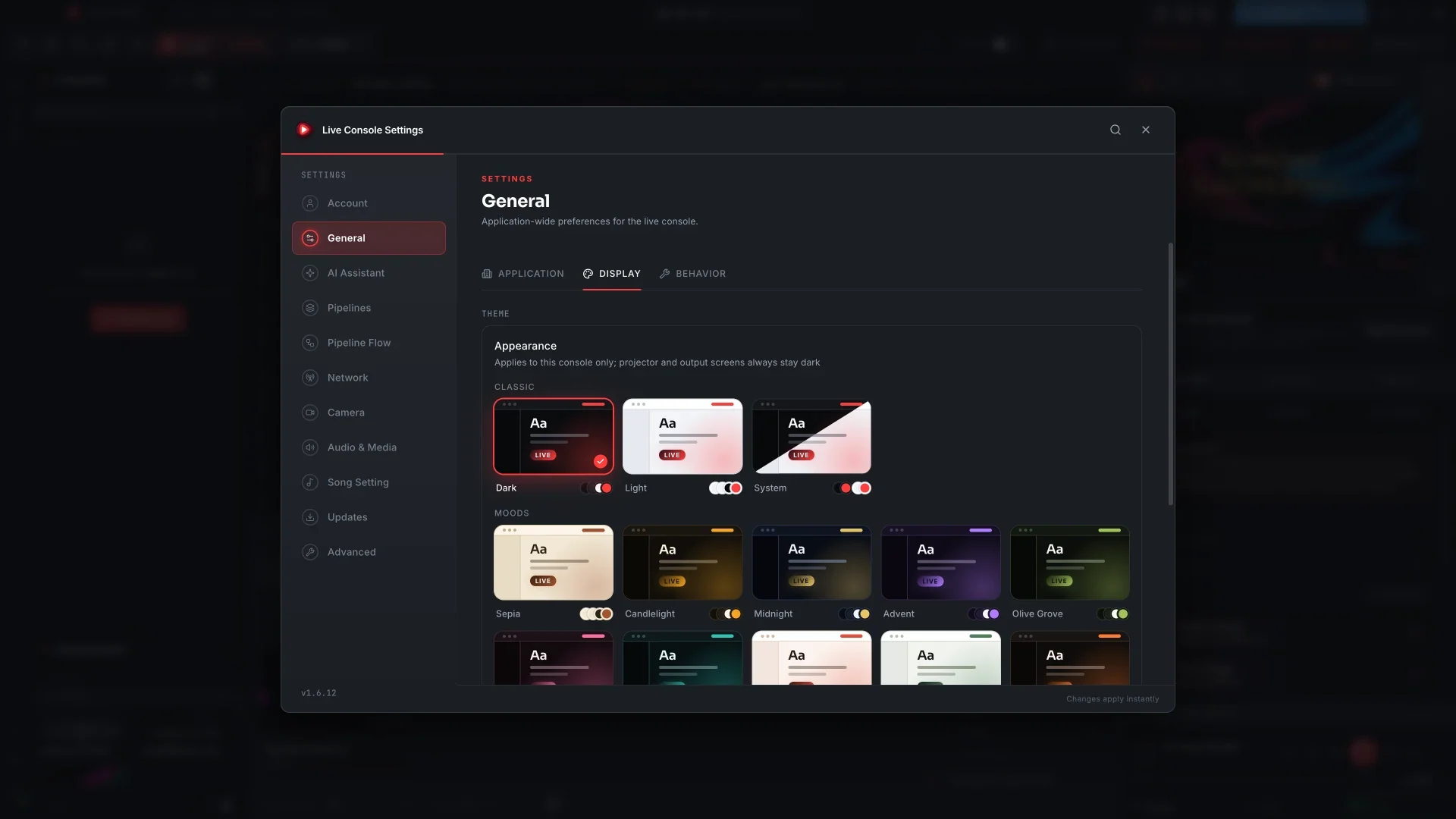
You can also skip Settings. The theme button at the bottom of the left rail opens the same picker, with Interface scale underneath.
The 12 themes
Sepia, Candlelight, Midnight, Advent, Olive Grove, Rose Window, Galilee, Easter Dawn, Linen, Pentecost, Cathedral and High Contrast. Sepia, Easter Dawn, Linen and Cathedral are light. The other eight are dark.
Here is the same service running in some of them.
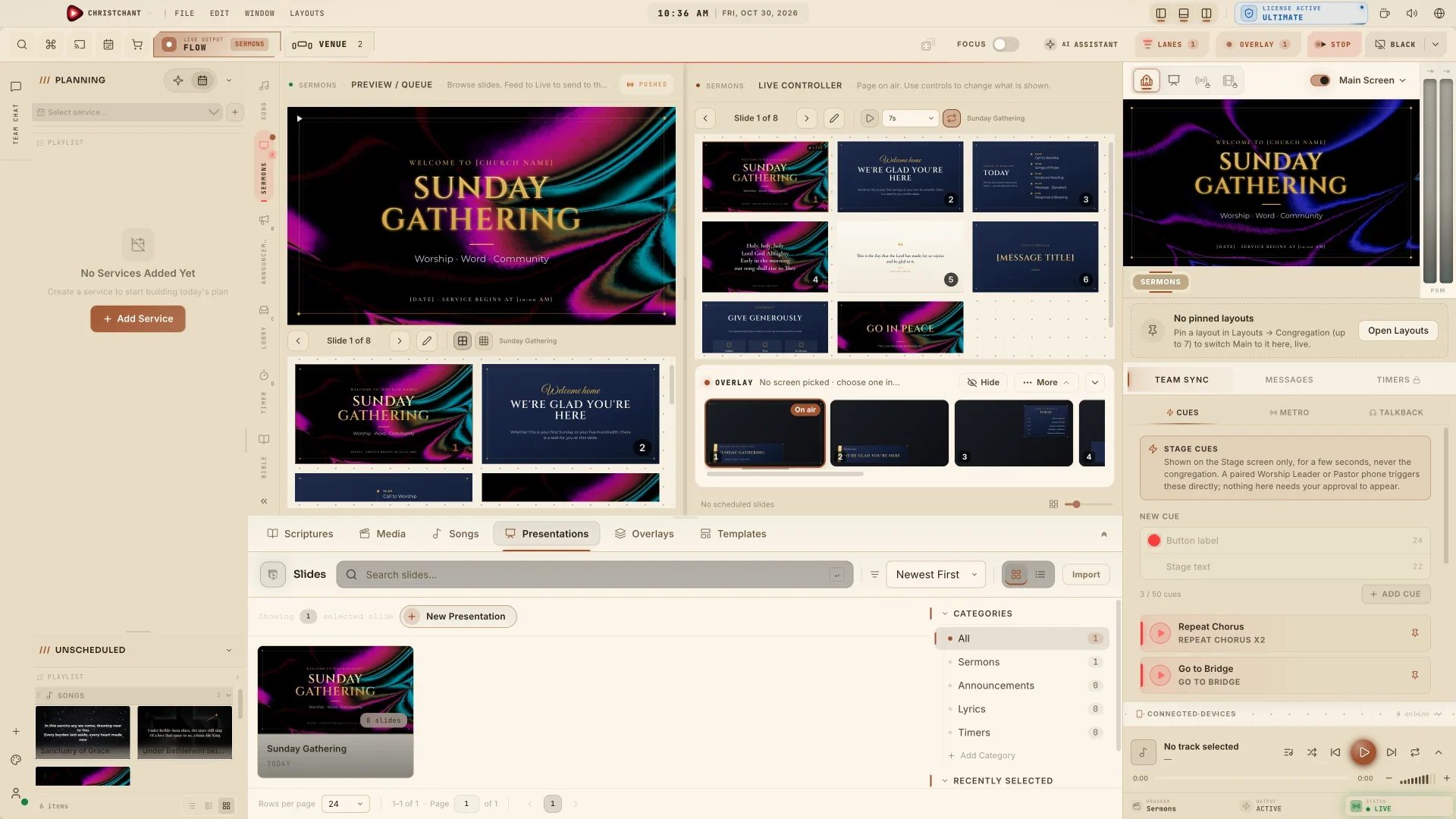
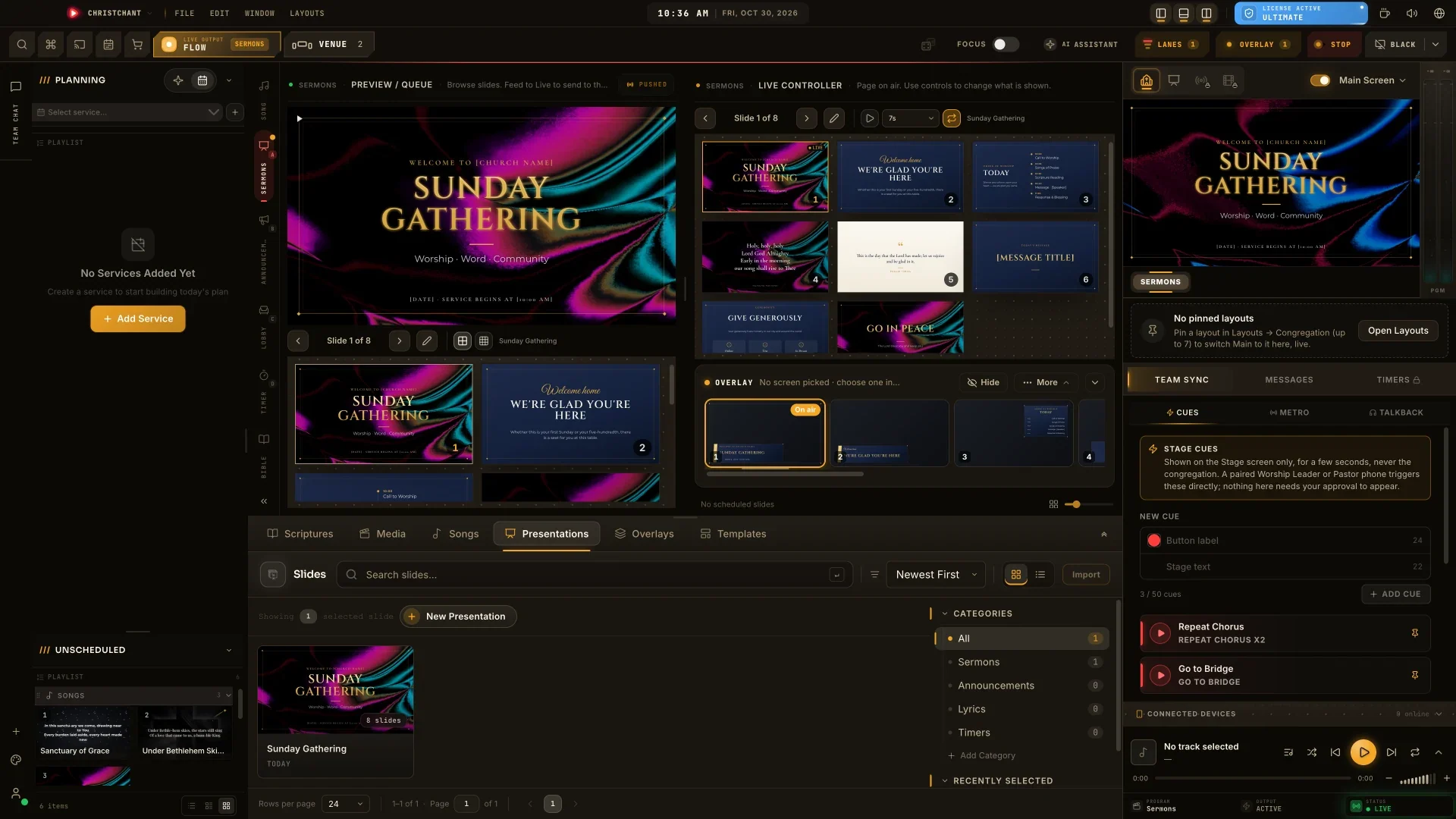
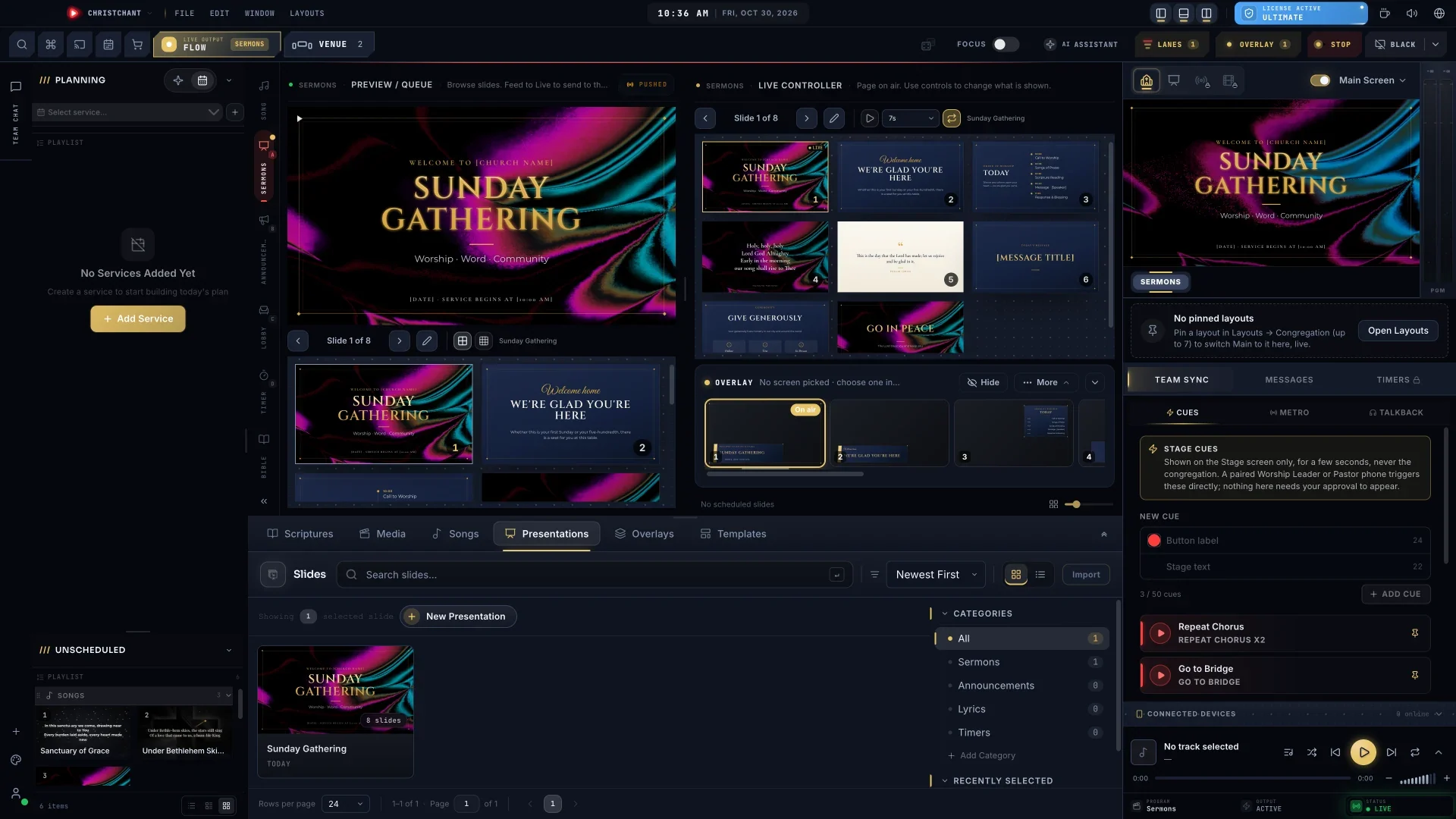
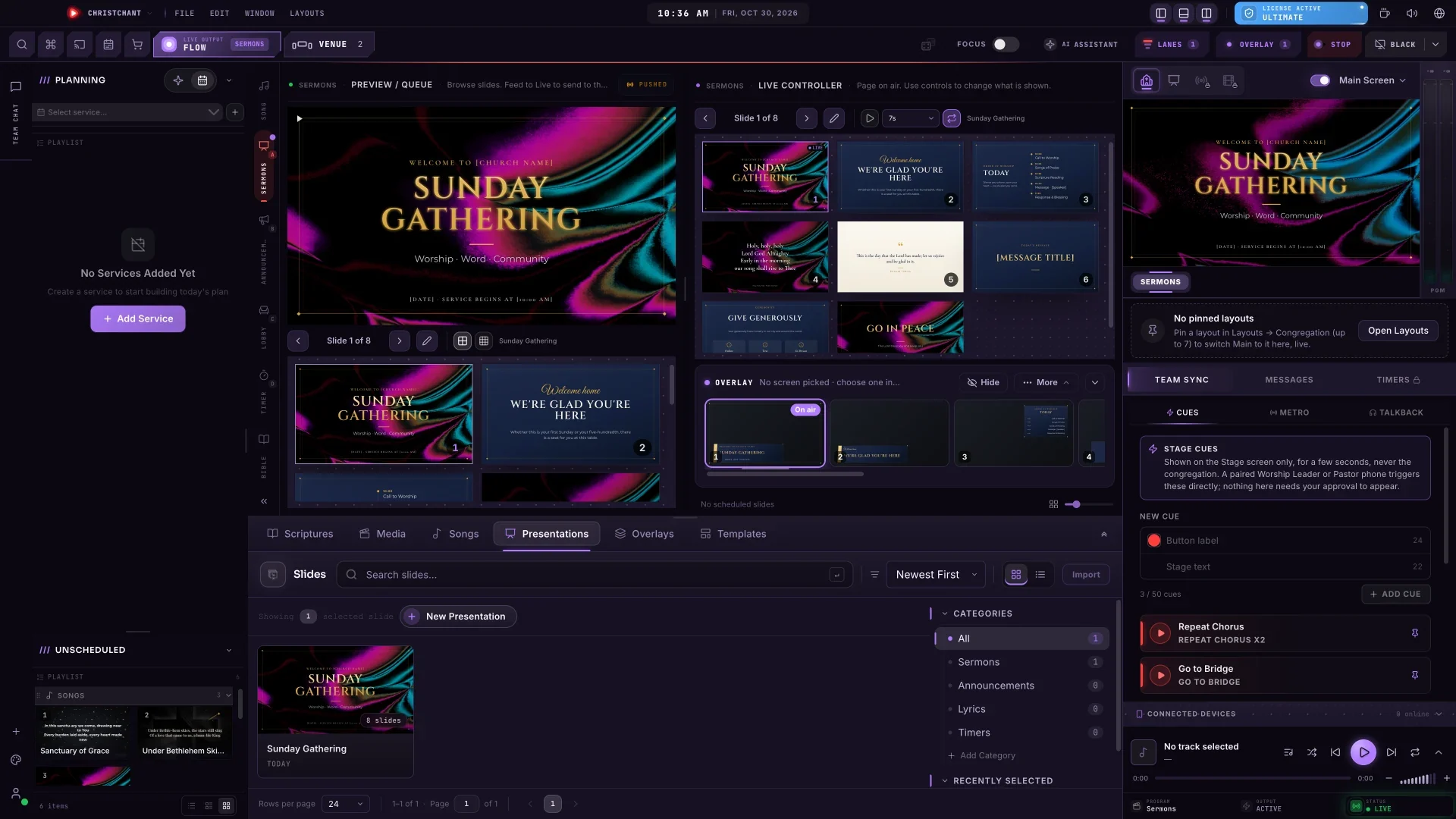
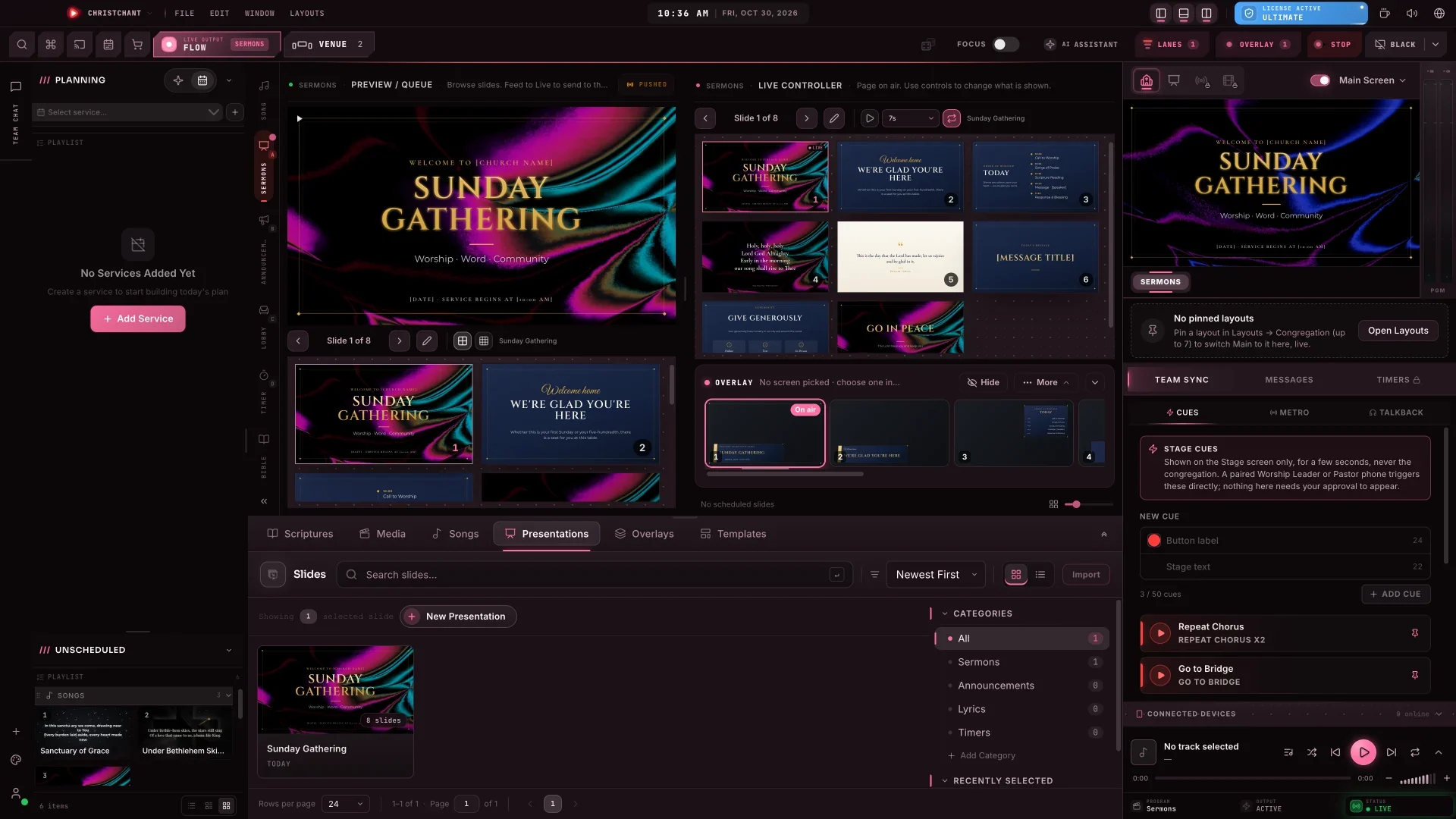
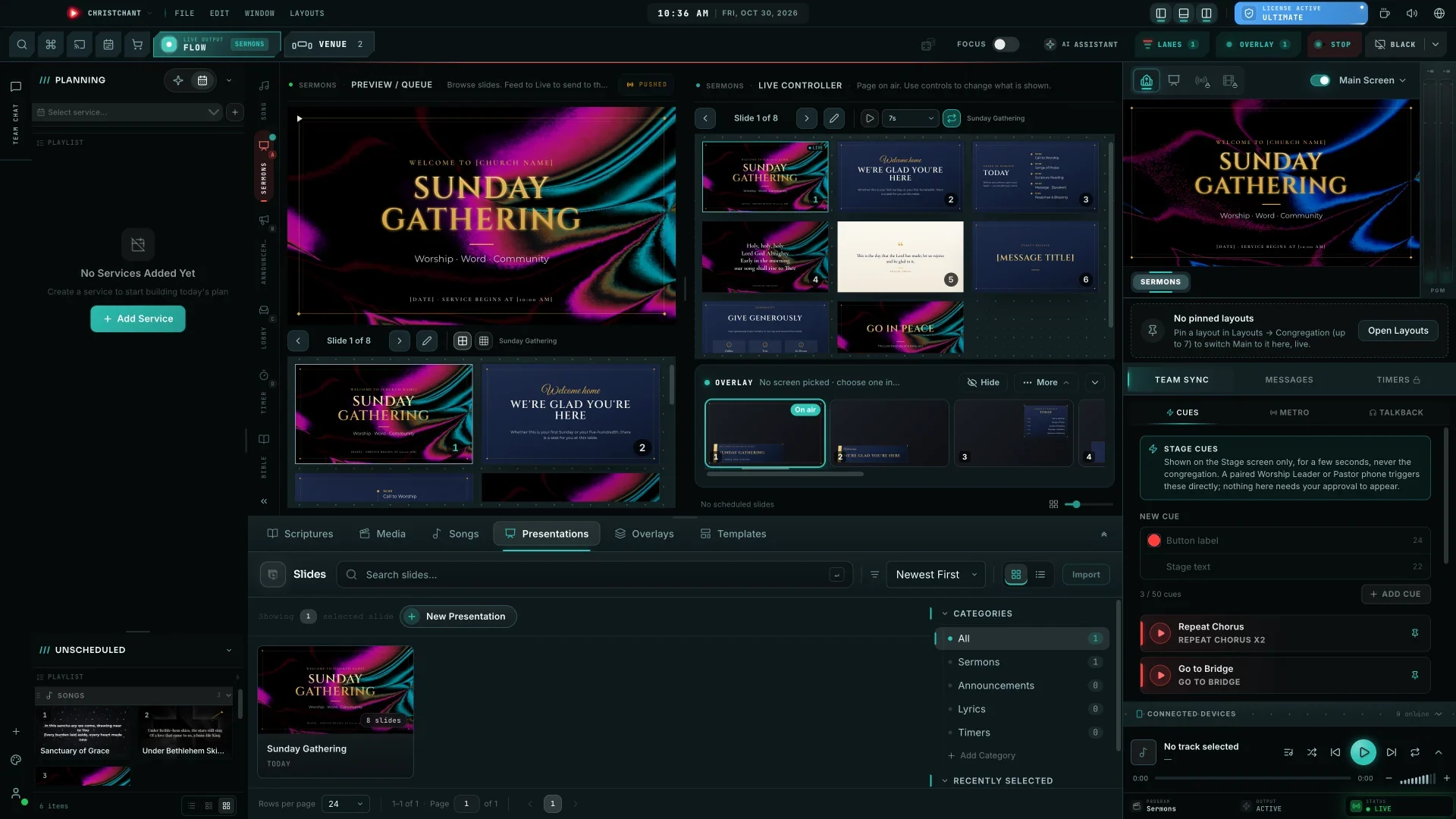
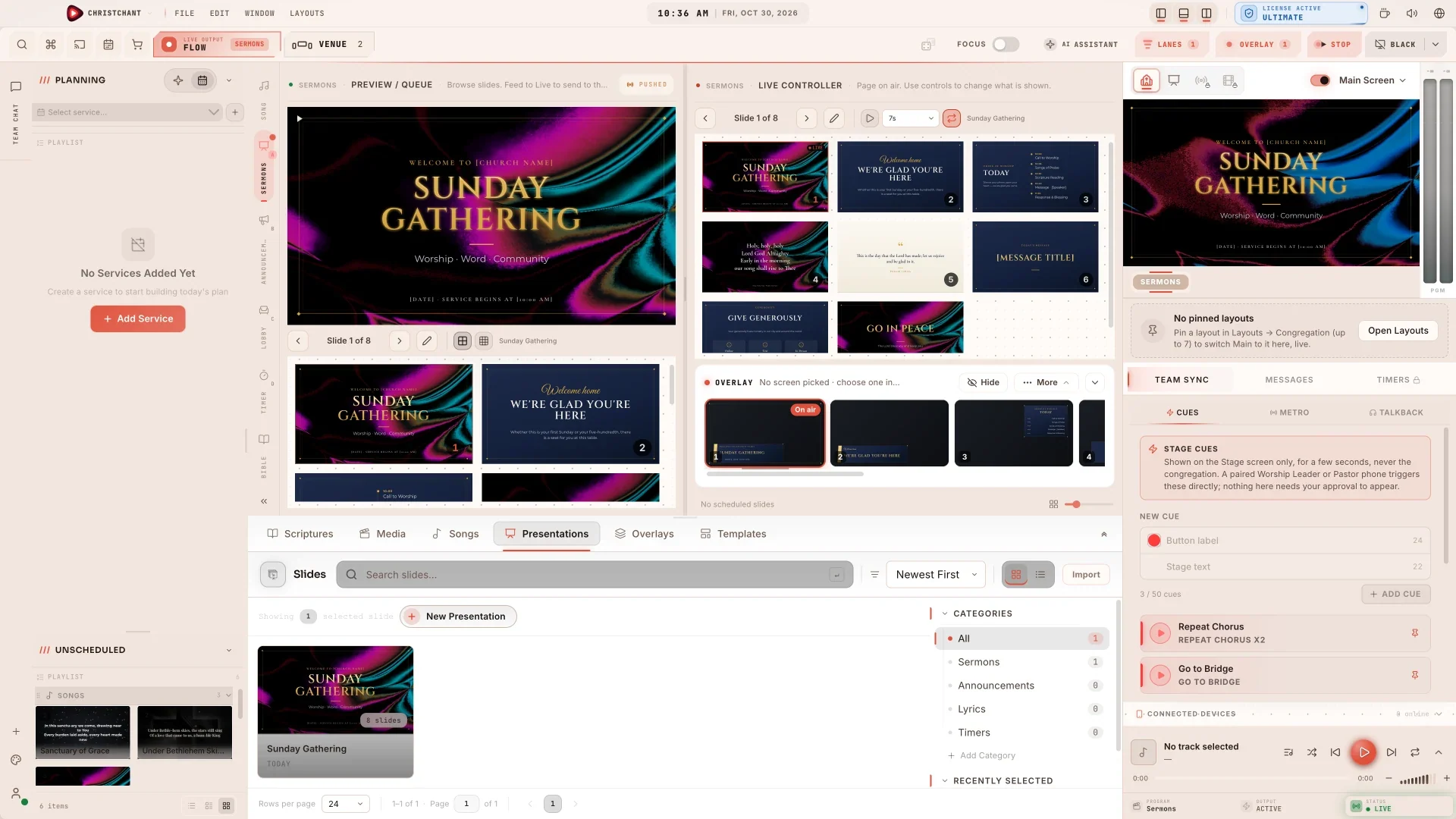
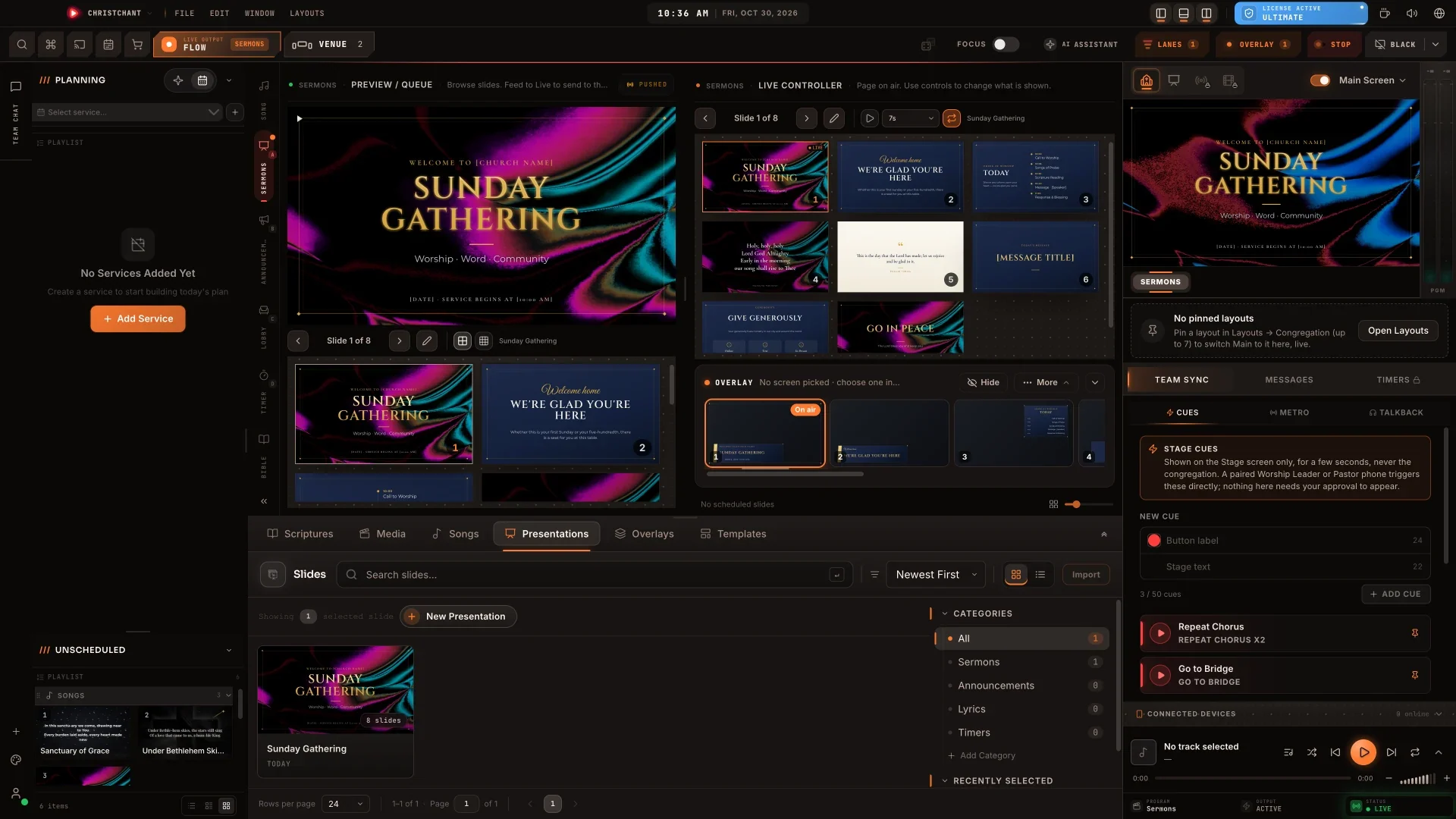
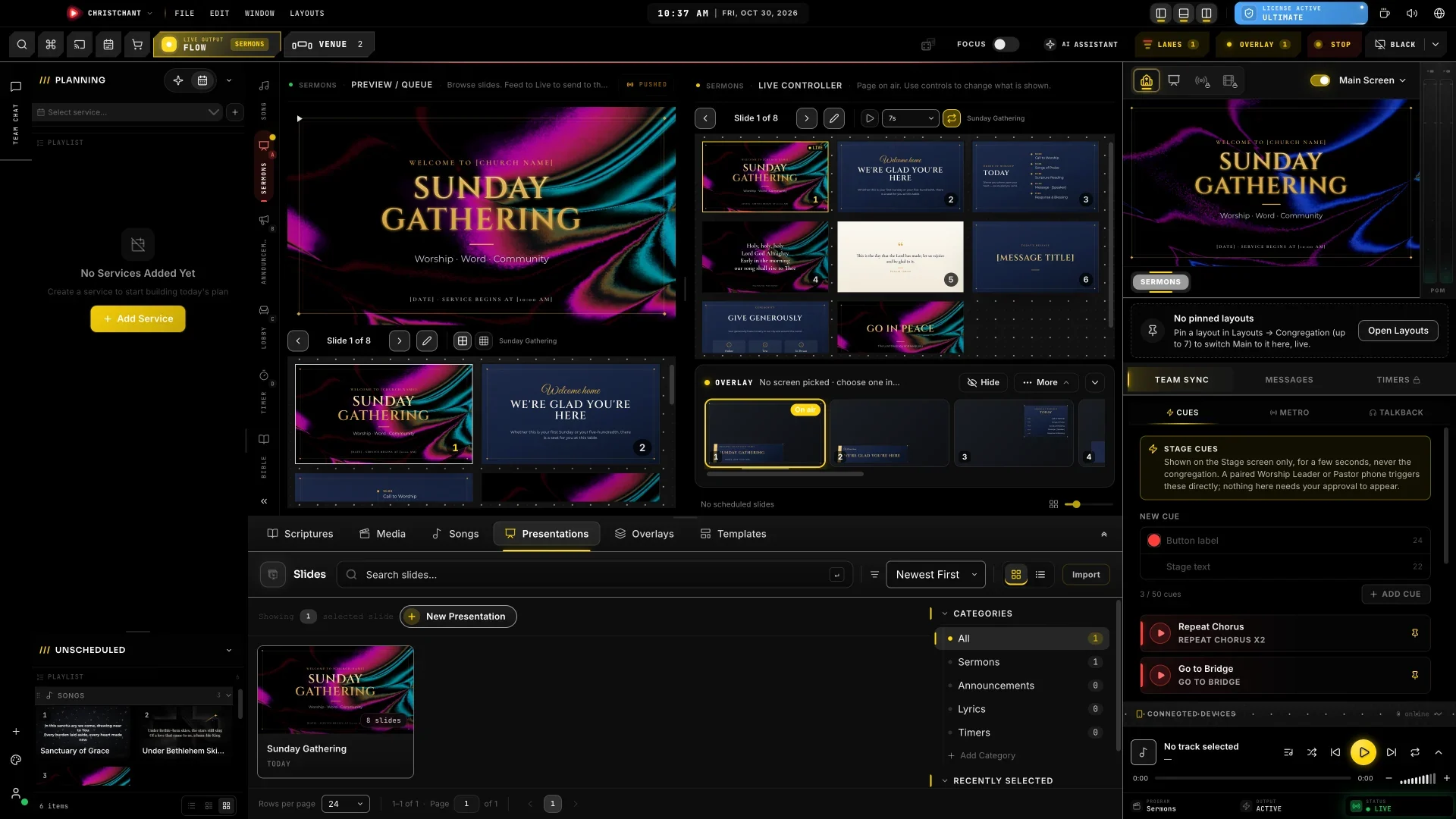
The theme only changes the console you work in. The projector and output screens always stay dark, so the congregation sees exactly the same thing whichever theme you pick.
Interface Scale
Below the themes in Settings › General › Display is Interface scale, with six steps: 80%, 90%, 100%, 110%, 125% and 140%. The whole console scales together, including toolbars, panels and text. 100% fits the console to your display automatically. Projector and output screens are never scaled.
Use 80% or 90% on a laptop to fit more on screen.
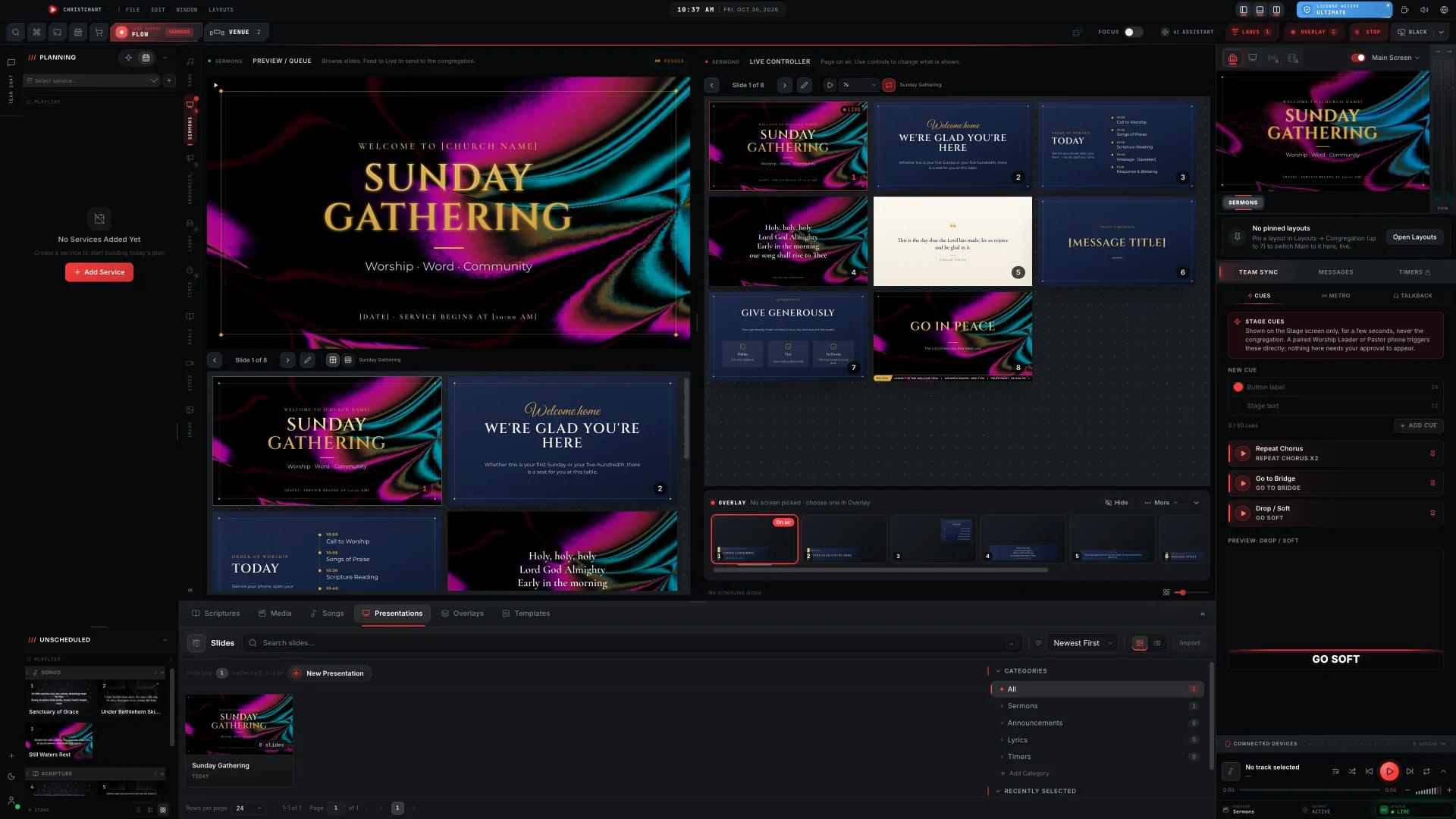
Use 125% or 140% when the console is further away or harder to read.
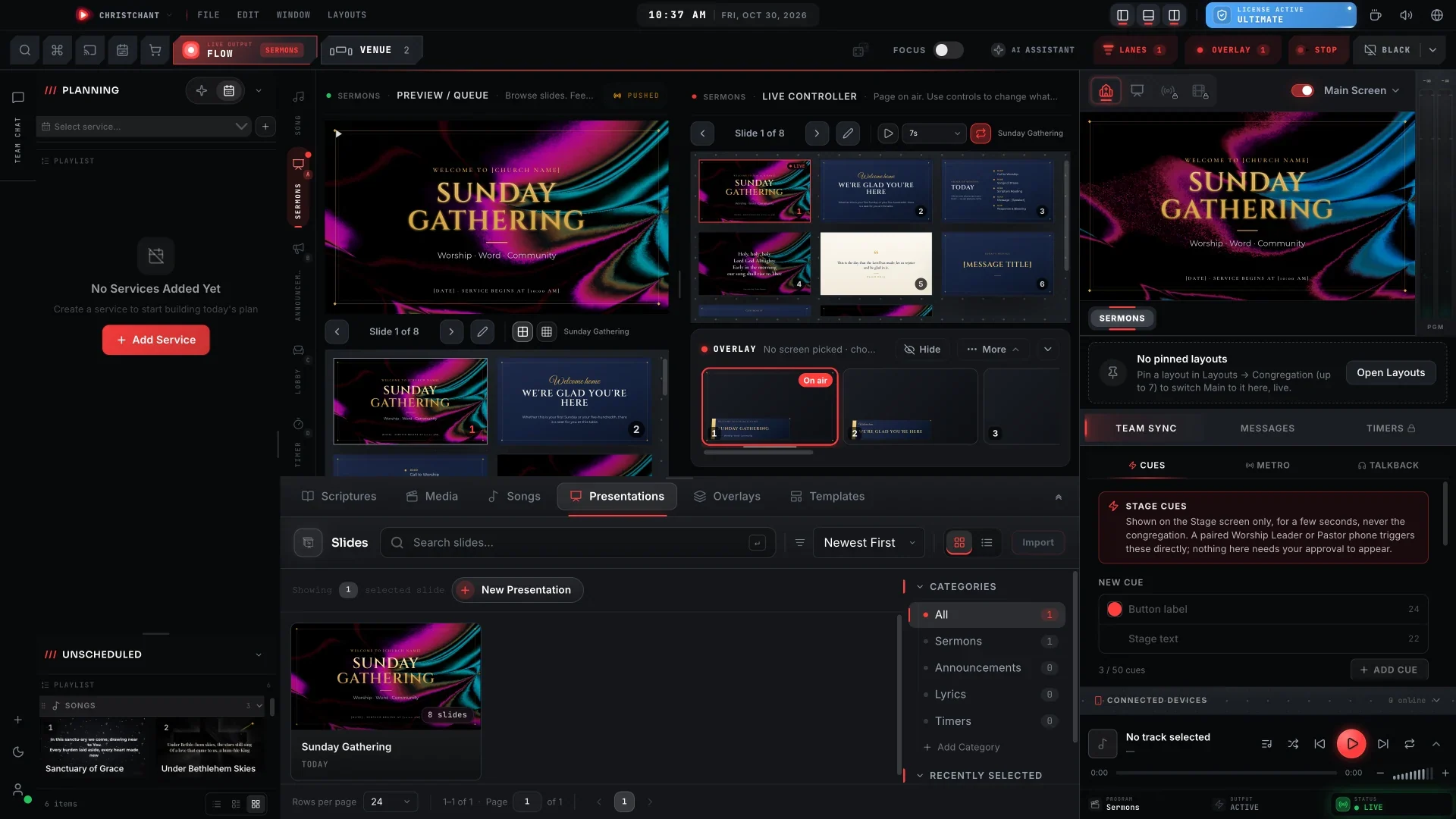
Theme and scale both apply instantly and are saved on that computer.
Step-by-step guide: Change the console theme and Interface Scale.
New to ChristChant? Download it free and open Settings › General › Display.