For a lot of churches, the people watching at home are now part of Sunday. They deserve the same lyrics, the same scripture and the same clean picture as the room, without a volunteer juggling three apps at the back.
ChristChant gives you two ways to get there. Our new tutorial video walks through both, one click at a time: watch it on YouTube. It's about four minutes long.
It starts with the Broadcast screen
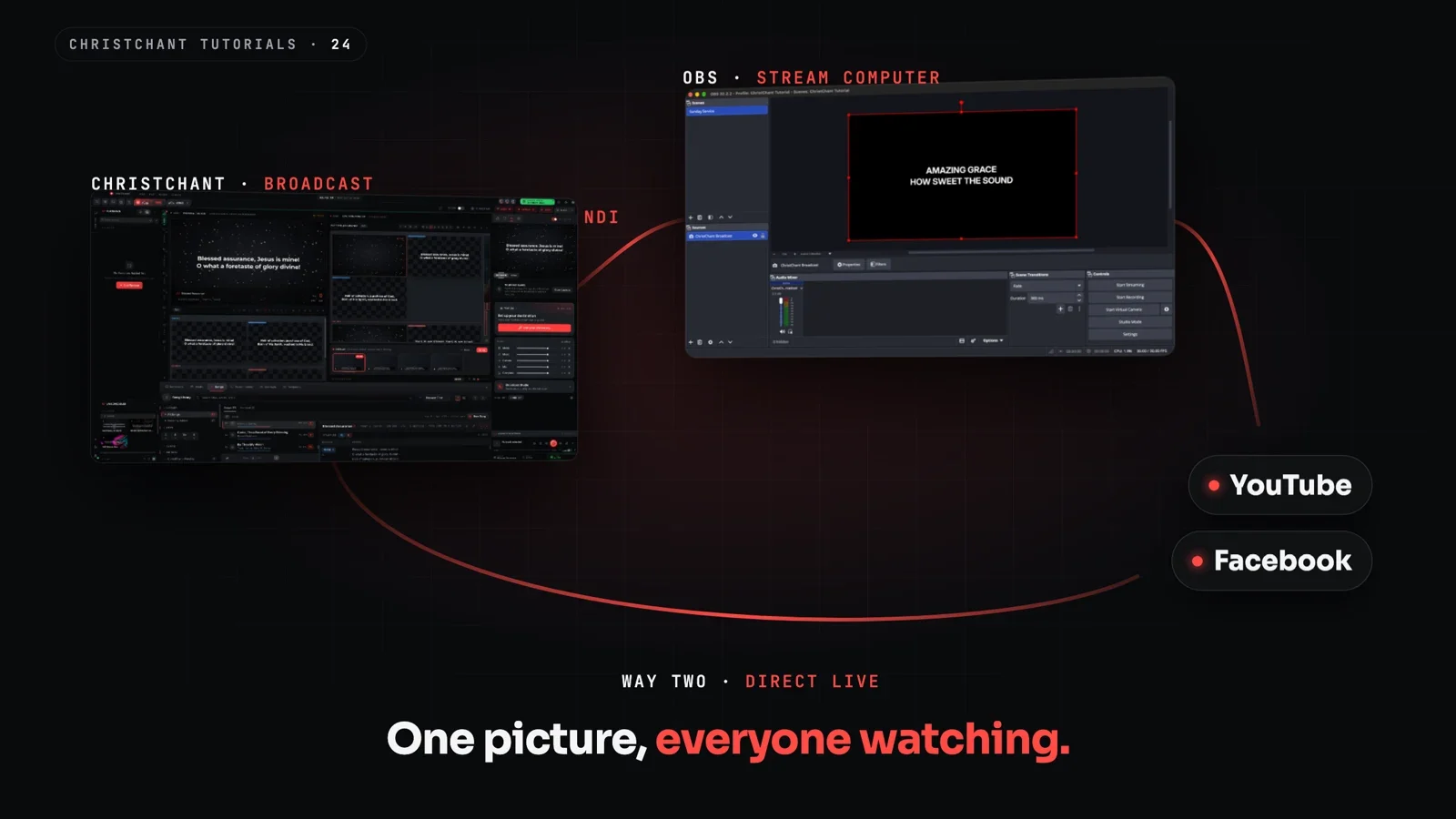
Both ways begin in the same place: the Broadcast screen, the picture made for people watching online. Open the Broadcast tab in the panel on the right to see exactly what your viewers will see. If it says the Broadcast screen is off, switch it on in the Flow first.
Way one: OBS, over your network
Use this when a second computer runs your stream with OBS and your cameras.
ChristChant sends its screens over the network with NDI. Open Settings, then Network & Streaming, choose NDI Sources and switch on Broadcast. It turns green, says Publishing, and its meter shows the sound. Want only the words over your camera shot? Turn on Alpha key, and the lyrics and scripture come through with a see-through background.
On the OBS computer, install the free NDI plugin for OBS, DistroAV, and keep it on the same network. A wired connection is best. Under Sources, add an NDI Source and pick ChristChant - Broadcast from the list.
Then give OBS your stream key. In YouTube Studio, click Create, then Go live, and copy the key. In Facebook Live Producer, choose Streaming software and copy the key from there. Paste it into OBS under Settings, then Stream, and press Start Streaming. Keep the key private: anyone who has it can stream to your channel.
Way two: Direct Live, straight from ChristChant
No second computer and no extra software. Direct Live sends the Broadcast screen to YouTube, Facebook or any RTMP server, from the Provider tab under the Broadcast screen.
Add your stream key, then add Facebook as a second destination to go live on both at once. Choose a quality that matches your upload speed, check the sound strips, and press Go Live. Press it again when the service is over.
If the picture stutters, go lighter: a lower quality preset on a busy connection beats a stream that keeps buffering.
Which way is right for you?
- You already stream with OBS and cameras: use NDI. ChristChant becomes a clean source in the scenes you already have.
- You want the simplest setup: use Direct Live. One computer, one button, YouTube and Facebook together.
You can use both at the same time, too.
NDI and Direct Live are included with Ultimate Halo. The full written guide, with every setting, is in the help centre: Stream your service: NDI, SDI or go live directly.
Ready to try it? Download ChristChant and take your next service online.