

One slide. Two layers.
The room needs the full slide. The livestream needs a clean lower third over the camera. In ChristChant both live in the same file: every slide has a Main page and a see-through Overlay twin, and each screen gets the one it should.
One slide. Two layers.
Every slide carries a Main page for the room and a see-through Overlay twin, saved in the same file. The projector gets the full slide while the livestream gets a clean lower third over the camera, from one click.
- PropsLower thirds, logos, QR codes
- MessageAudience messages, your design
- SlidesEach slide’s overlay page
- LyricsEvery line, as a lower third
- BibleEvery verse, as a lower third
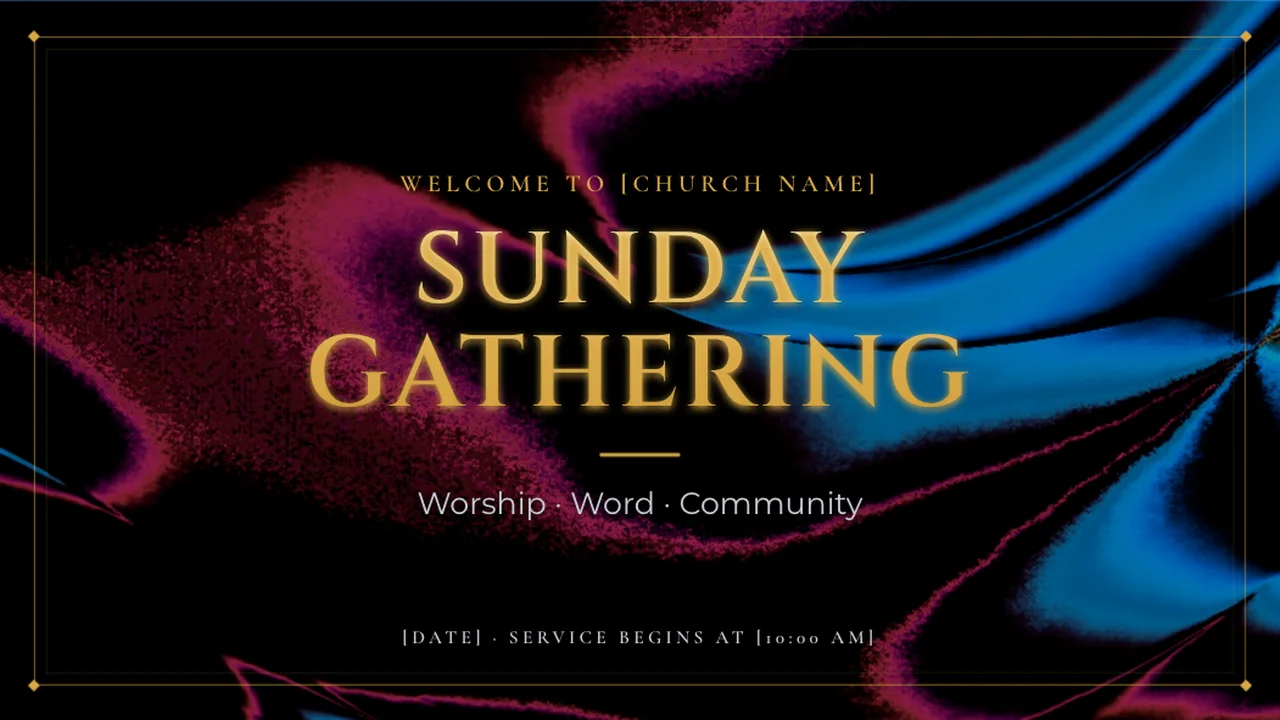
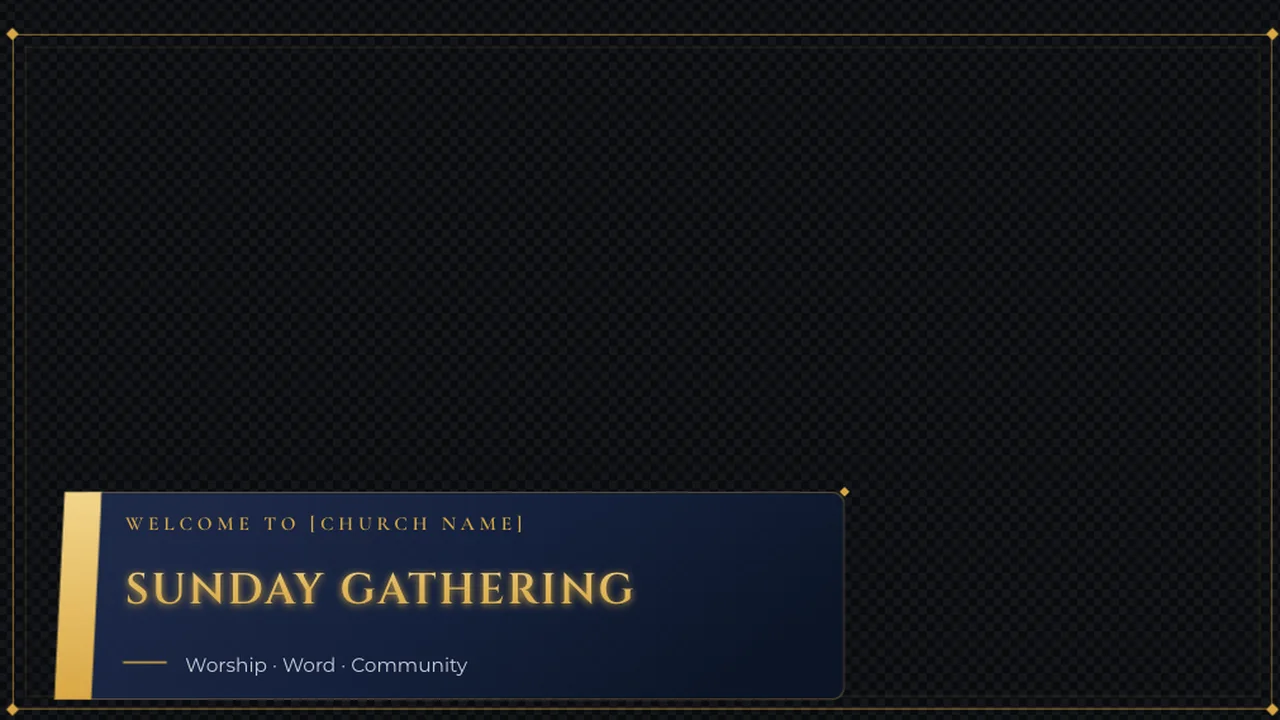
Two layers, one file
Main and Overlay sit side by side in every slide, song template and Bible template. Switch between them in the editor's header.
Five overlay channels
Props, Message, Slides, Lyrics and Bible, each with its own tab in the header Overlays desk.
Routed per screen
Tick the screens each layer goes to. The room keeps the full slide while the stream gets only the lower third.
Everything that can ride over the picture
Props
Lower thirds, logos, QR codes and animated titles with no background, pinned to the header.
Message
Audience messages in a design of your own, over whatever is live.
Slides
The live deck's Overlay pages, linked to the slide on screen or run on their own.
Lyrics
The song template's Overlay page, following every line on Main: lyrics as a lower third for the stream.
Bible
The Bible template's Overlay page, following every verse on Main.
Main for the room, Overlay for everything else
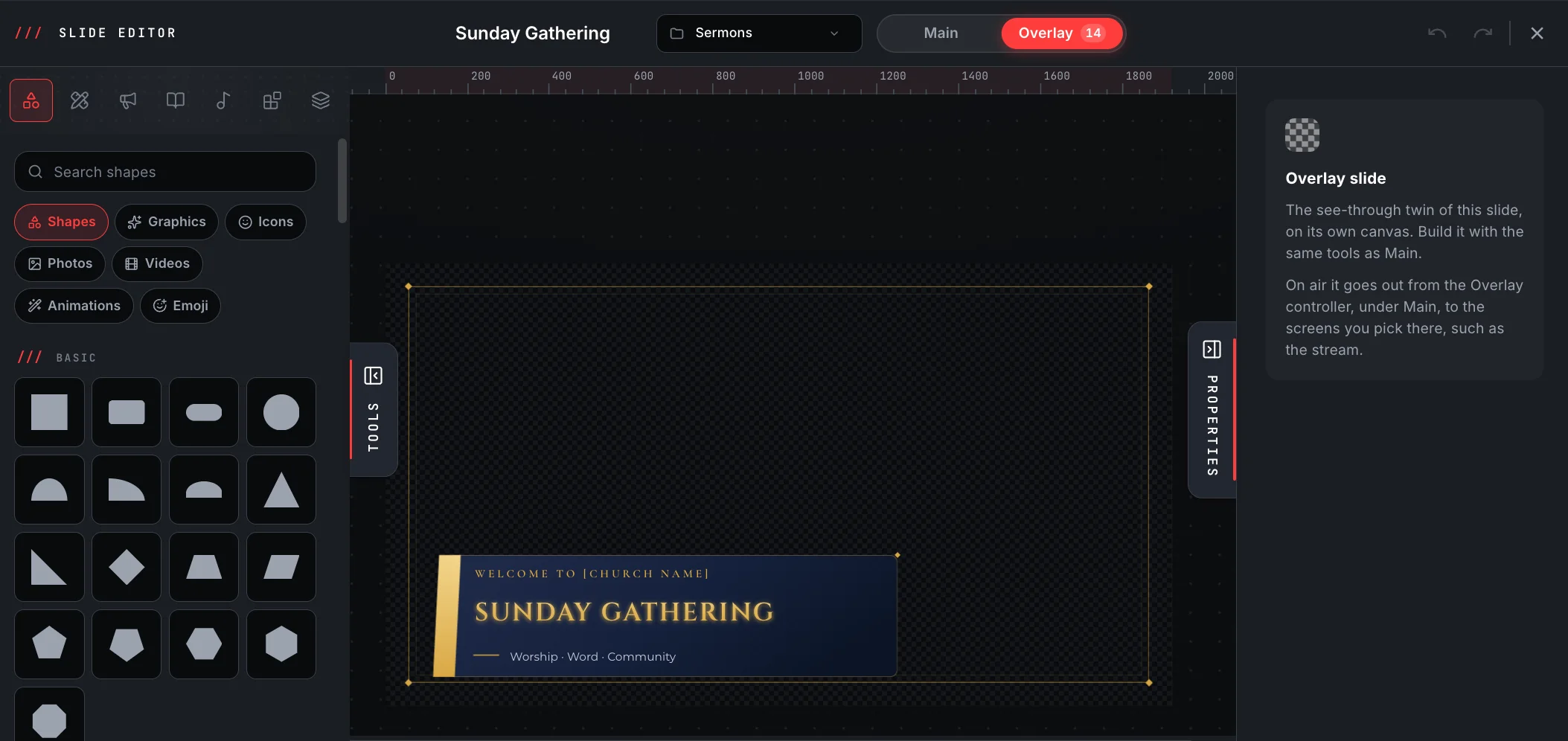
Open any slide and the editor's header has two tabs: Main and Overlay. The Overlay page is the slide's see-through twin, built on its own canvas with the same tools: text, shapes, images, QR codes and animations, over a checkerboard that shows what stays clear. Ready-made decks come with their overlays already designed, so a title slide arrives with a matching lower third.
- Every slide has a Main page and a see-through Overlay page
- Same file, same tools, no second deck to keep in step
- Song and Bible templates have the same two layers
- The Overlay tab shows how many slides already have one
Put a slide's overlay on air in one click
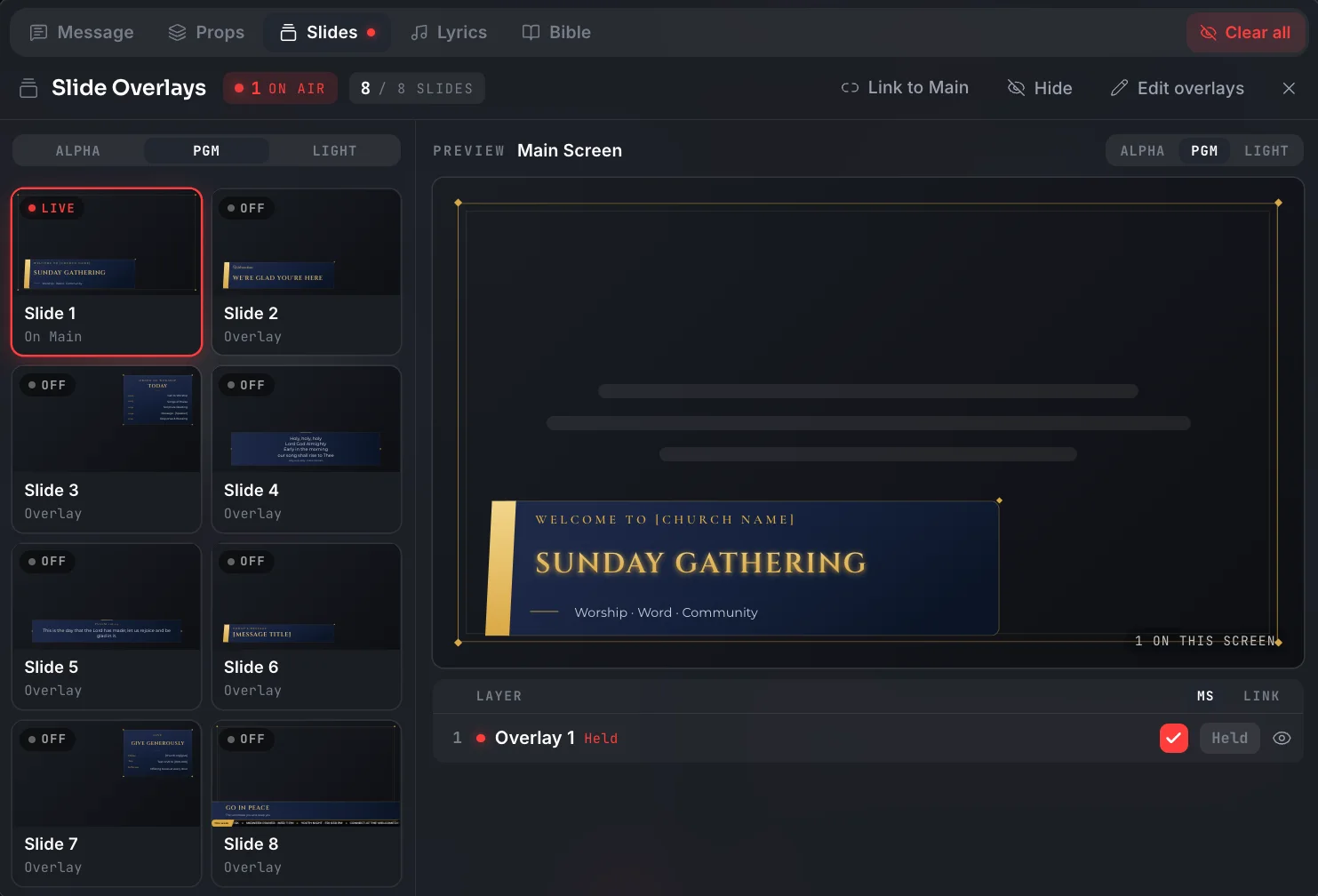
The Slides tab of the Overlays desk lists every slide of the live deck that has an overlay. Click one and it is on air; tick the screens it goes to in the layer row underneath. Link it to Main and the overlay follows whichever slide you are on, or unlink it to hold one lower third while the room moves on.
- A card for every slide that has an overlay
- Link to Main, or run the overlay on its own
- A preview per screen over transparent, program or light
- Hold a layer, hide it, or take it off air
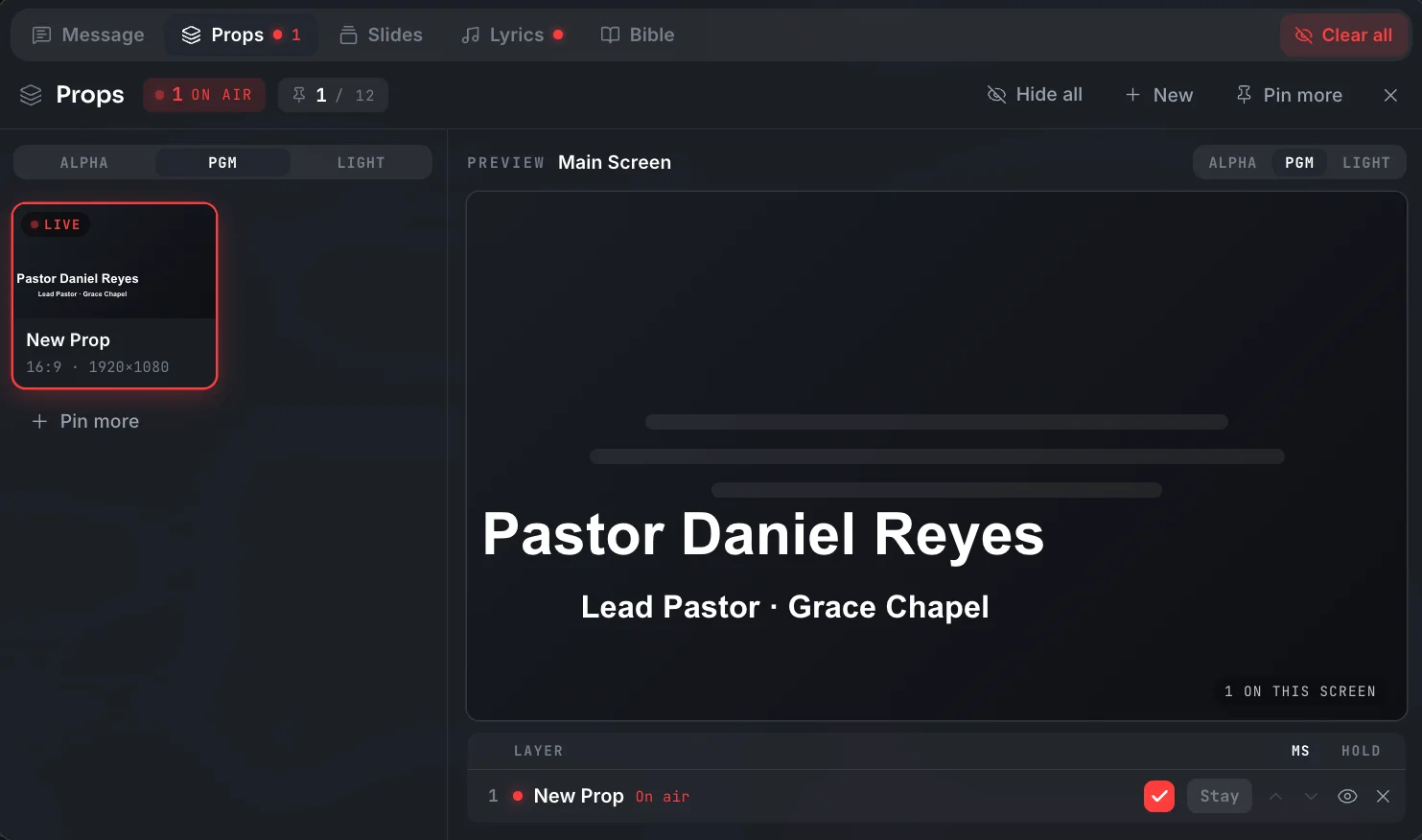
Props: lower thirds, logos and QR codes
A prop is a graphic with no background at all: a speaker's name, a giving QR code, your church's logo, an animated title. Build it in the Overlay Editor at any canvas size, from 16:9 to 32:9 or portrait, pin up to 12 to the header, and put them on air over whatever is playing. Stack several at once and choose the screens and the hold time for each.
- Its own canvas: 16:9, 4:3, 21:9, 32:9, 9:16 or custom
- Pin up to 12 for one-click access from the header
- Stack several props, each on its own screens
- Hold: stay on, or clear itself after 5, 10 or 30 seconds
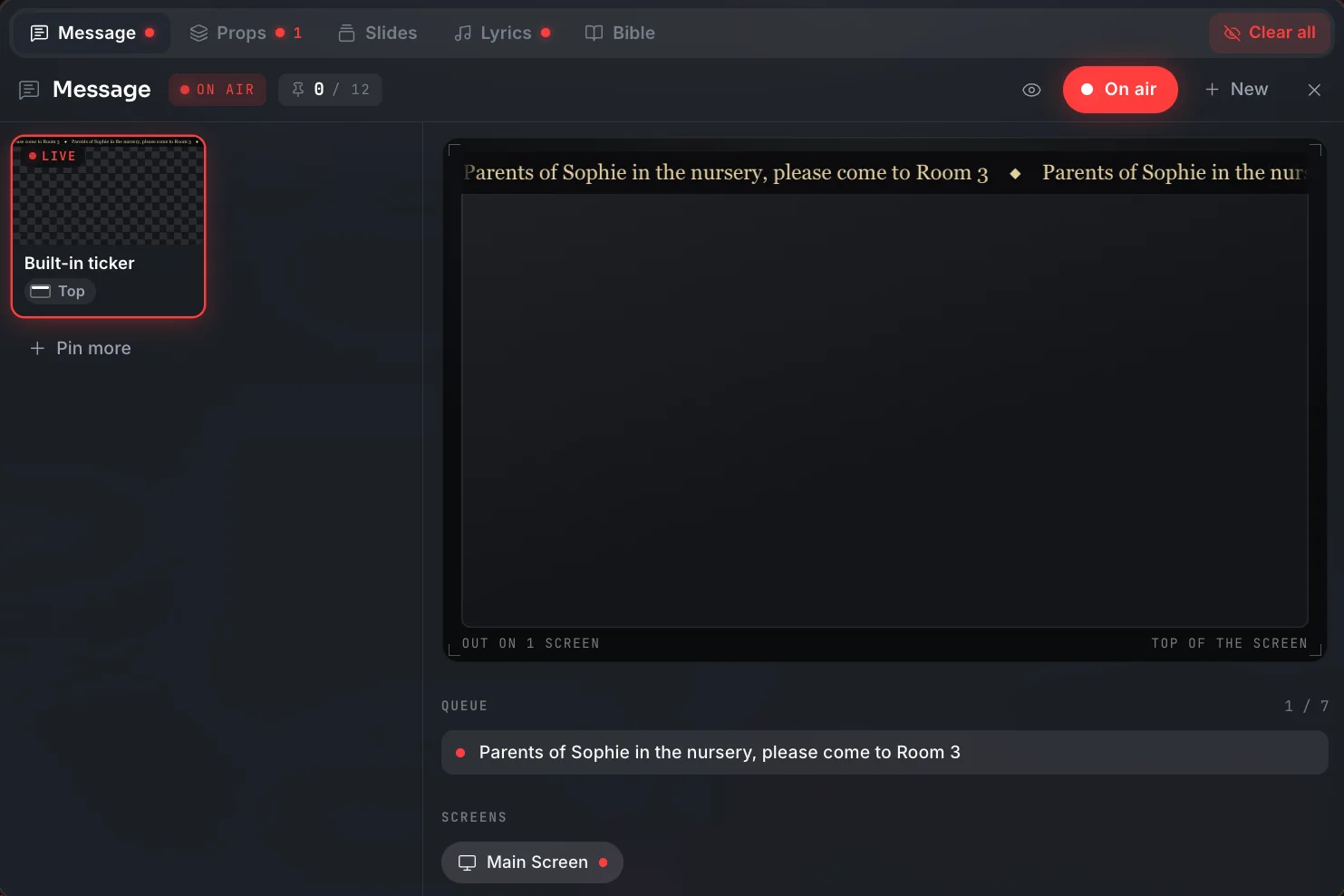
Audience messages that look like yours
Type a message, such as a nursery call, and it crawls across the screens you tick, over the song or the sermon without stopping either. The words live in the Messages panel with a queue and presets; the look is a design of your own, built in the editor as a ticker, a lower third or a floating pill, with the built-in ticker ready from day one.
- Type it, press Enter, it is on screen
- A queue and presets for the messages you send every week
- Your own message design, or the built-in ticker
- Only on the screens you tick
Overlays are on every plan, including Free. Black screen still covers every overlay. Windows and macOS.
About this feature
Main is the slide as the room sees it, background and all. Overlay is a second page in the same slide with no background, made to sit over something else: the camera on the stream, another screen's picture, or the slide itself. Both are saved in one file.
Try it before next Sunday
Start Premium trial
Free for 30 days with every Premium feature: stage screen, extra outputs and broadcast. No card, and you keep the app on the Free plan afterwards.
Create account and start trialThree steps: create your account, start your 30-day Premium trial in one click, then download ChristChant and sign in. Every feature, no credit card.