
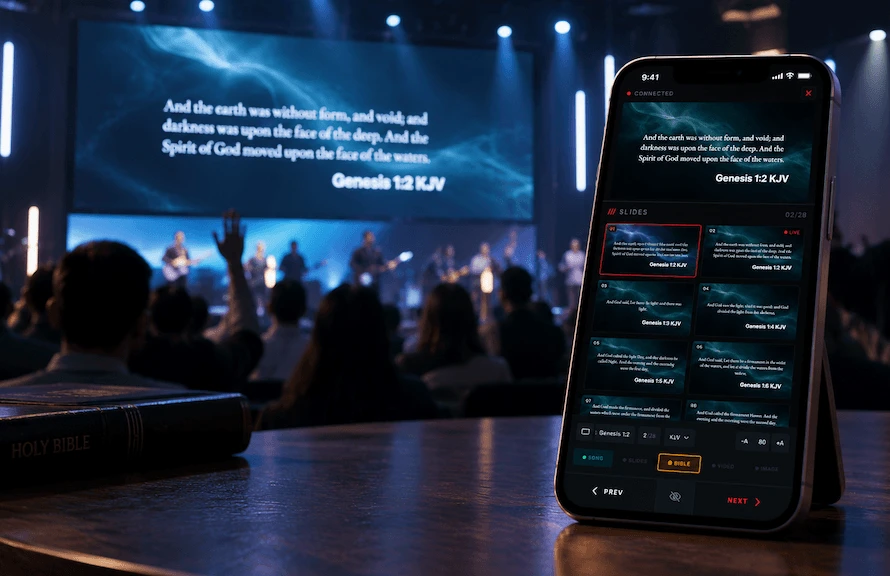
The remote that can also draw on the screen
Pair a phone in seconds and you are no longer tied to the booth. Advance slides, cue video, read your service notes, and when you need to point at something, draw it straight onto the live output.
A Bible that becomes a remote
ChristChant for Android is a free download: no plan, no account tier. On its own it is a full offline Bible. Paired with a desktop, it is your slide remote and your live annotator.
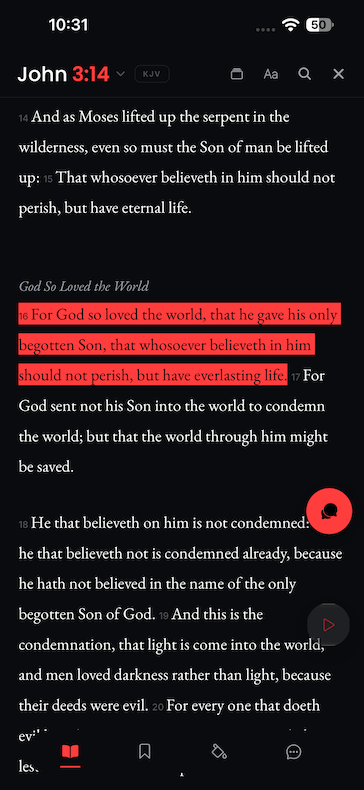
Scripture, with the signal off
The text ships with the app and stays on the device: read by book and chapter, jump to a reference, search by keyword, and mark what you want to keep. Highlights, bookmarks, verse notes and standalone notes of your own all save to the phone rather than to somebody's account.
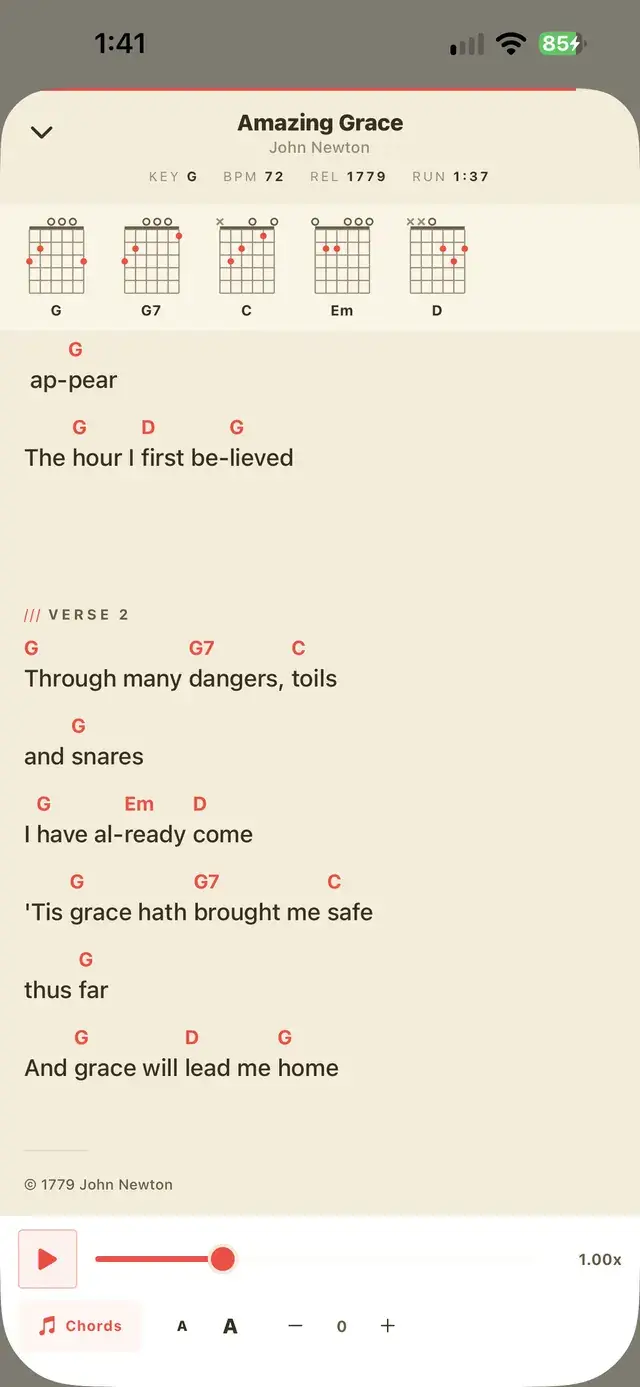
The set, in your hand
The songs you are leading, with chords written inline where they belong rather than on a separate sheet. Follow the line that is live, and send a transpose from the stage without anyone walking back to the booth to do it.
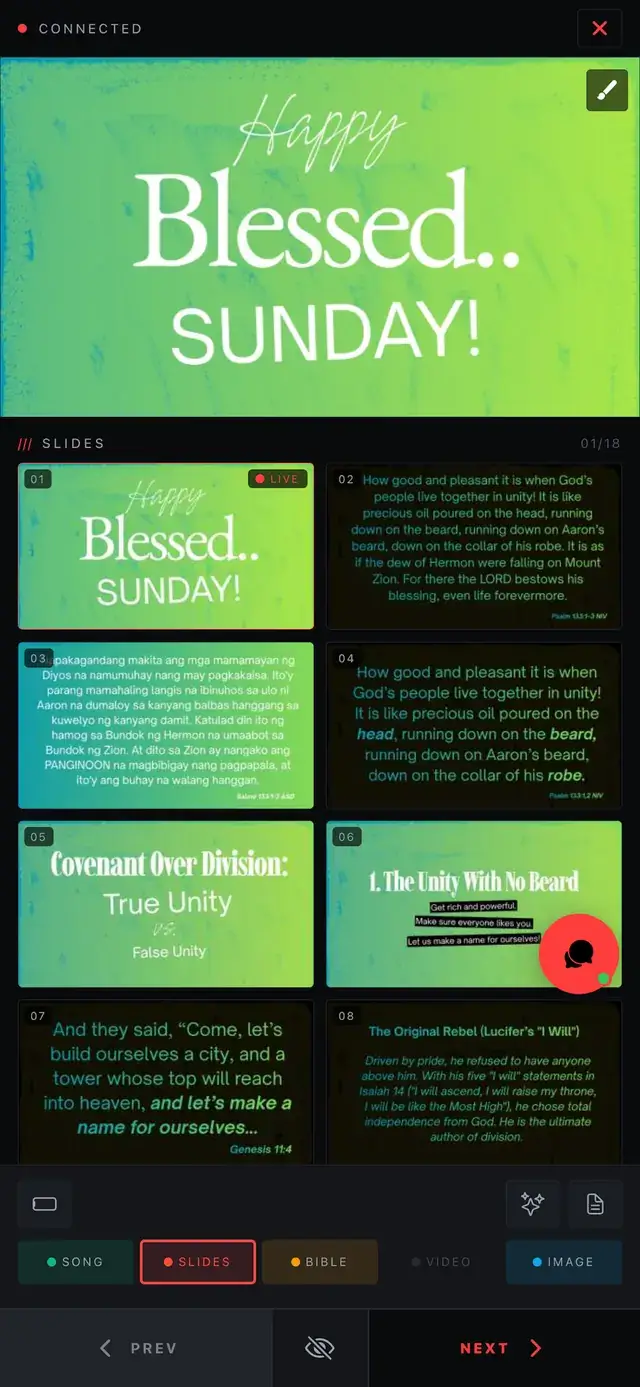
Pair it, and it runs the room
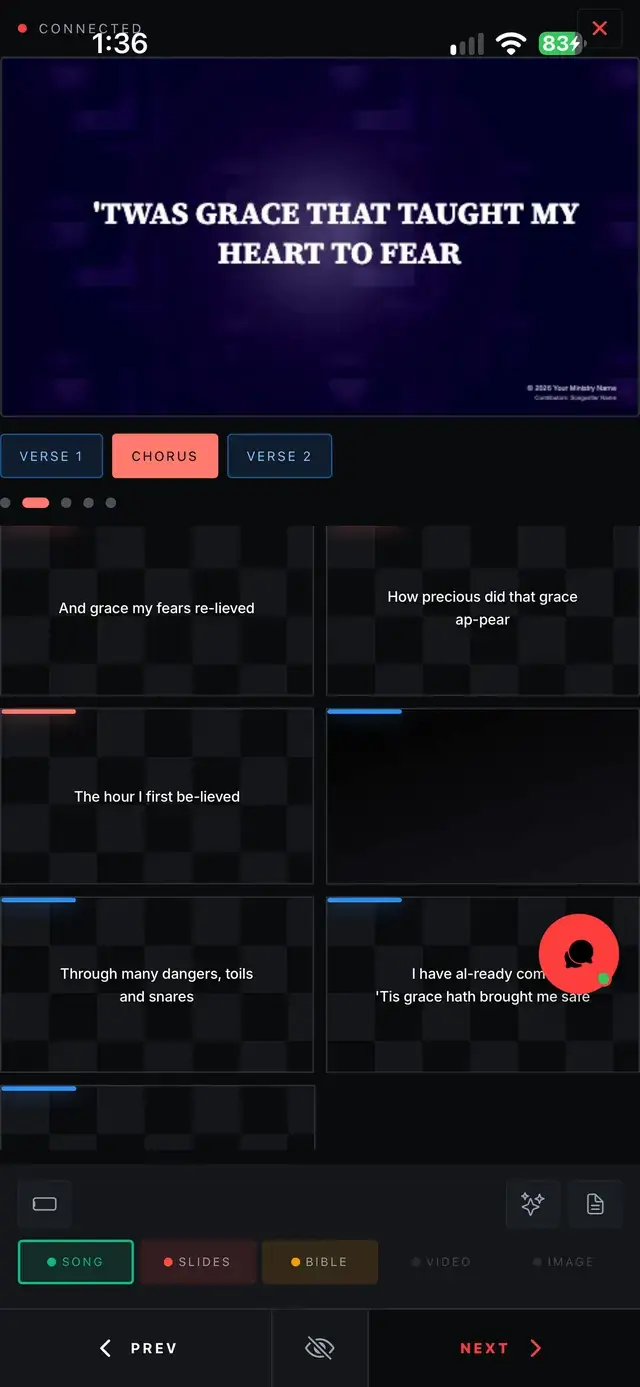
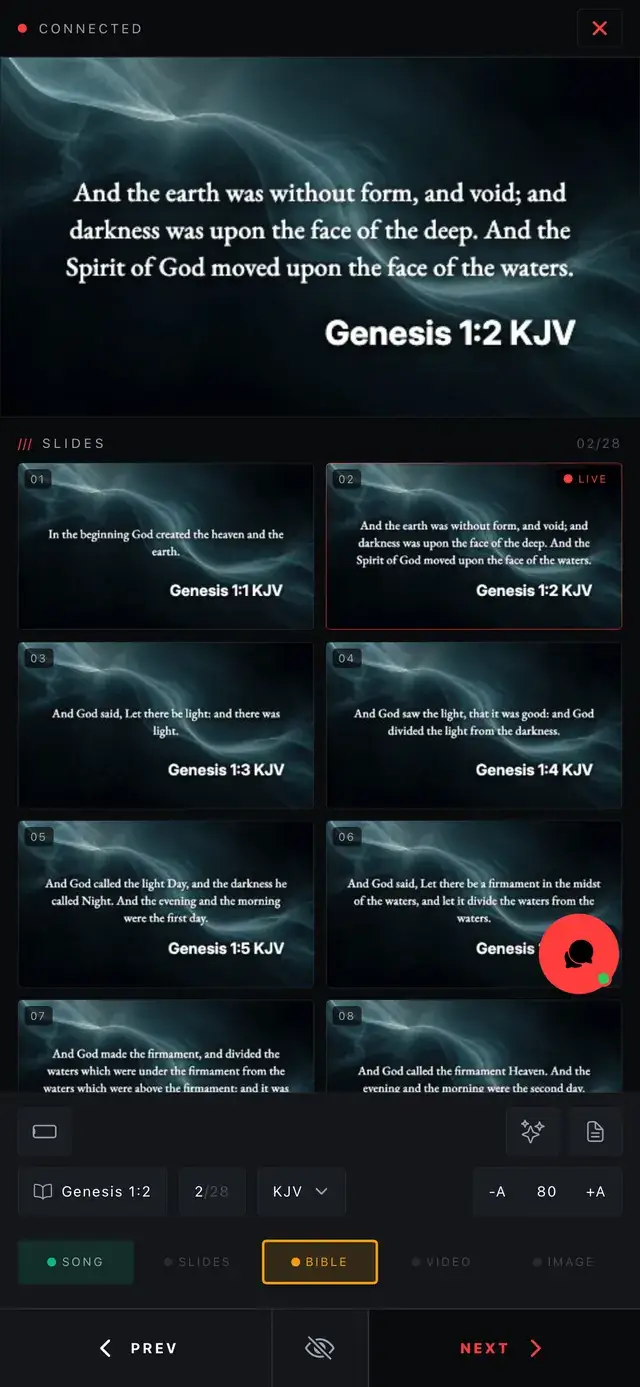
Scan the QR code on the desktop or type the PIN, and the phone becomes the controller: a live monitor of what is on screen, the slide grid under it, every pipeline a tap away, media playback, and a pen and highlighter you can draw straight onto the live output with.
And the rest of what it carries
Ask the assistant for a passage in plain English and it goes on screen. Keep the team talking in a per-service chat. Pull motion backgrounds, countdowns and text-effect packs down from the store once and use them offline for good.
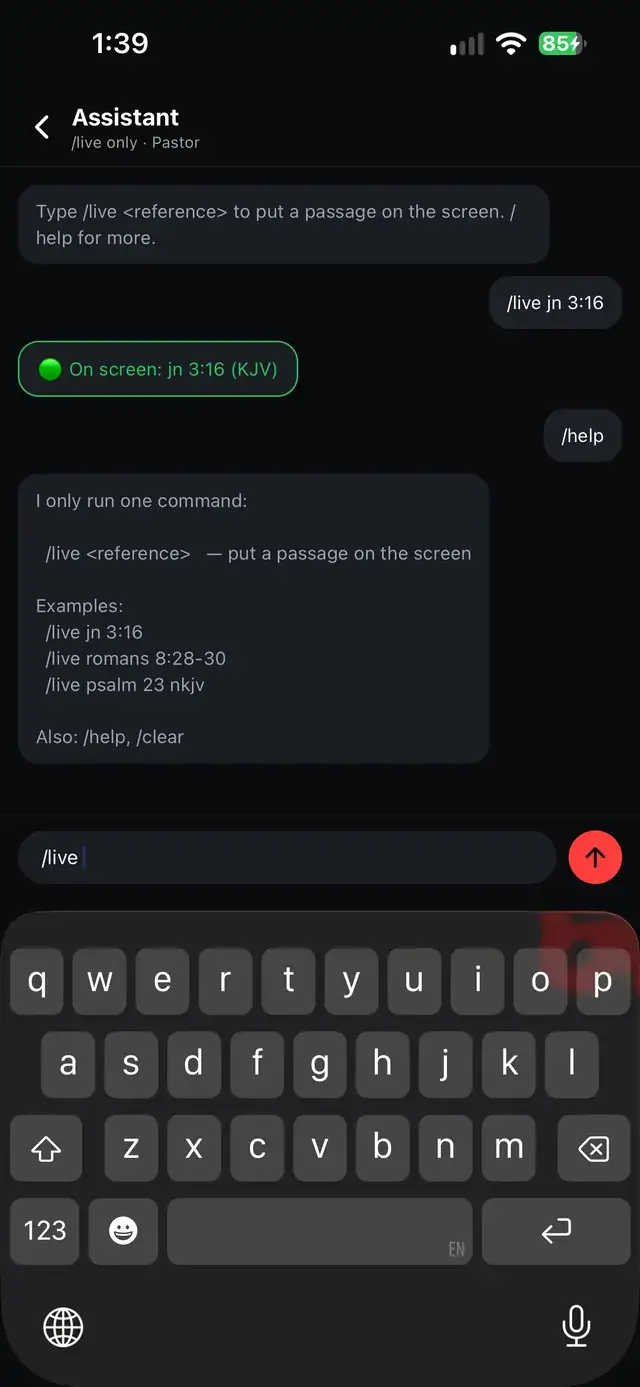
Pair in seconds
Scan the QR code on the desktop, or type the PIN. The phone stays paired for the service.
Pen and highlighter
Two tools, a colour palette and an eraser: enough to mark a passage without becoming a drawing app.
Video and audio control
Cue, play and scrub media from the same phone that is advancing your slides.
Notes where you can see them
Service notes travel with you in a drawer, instead of on a sheet of paper at the booth.
Draw on the live output from your hand
Strokes go on the slide itself, not on a copy of it. The phone sends points in absolute 1920×1080 slide coordinates, and the desktop builds the same drawing element the slide editor would, so a line drawn on a phone and a line drawn in the editor land identically on the projector.
- Pen for outlines, highlighter for emphasis
- Colour palette and an eraser, one tap away
- Landscape canvas that matches the slide you are marking
- The same geometry the desktop editor uses, so nothing shifts
The whole service, from anywhere in the room
The remote is not a next/back button. It mirrors what the desktop is doing: the current song and its pipeline, video playback, and a live view of what is on screen, so whoever is holding it always knows where the service is.
- Advance slides and jump around the song pipeline
- A live monitor view of the current output
- Video remote for playback control
- Works from the back row, the stage, or the sound desk
Your network, or no network at all
The phone pairs over the building's Wi-Fi when there is one, and over the app's own hotspot when there is not. Church networks are the least reliable part of a Sunday, so the remote does not depend on one.
- Pairs over local Wi-Fi or the app's own hotspot
- No internet connection required at any point
- A wrong PIN closes the socket rather than half-opening it
- Pairing is remembered only after it actually succeeds
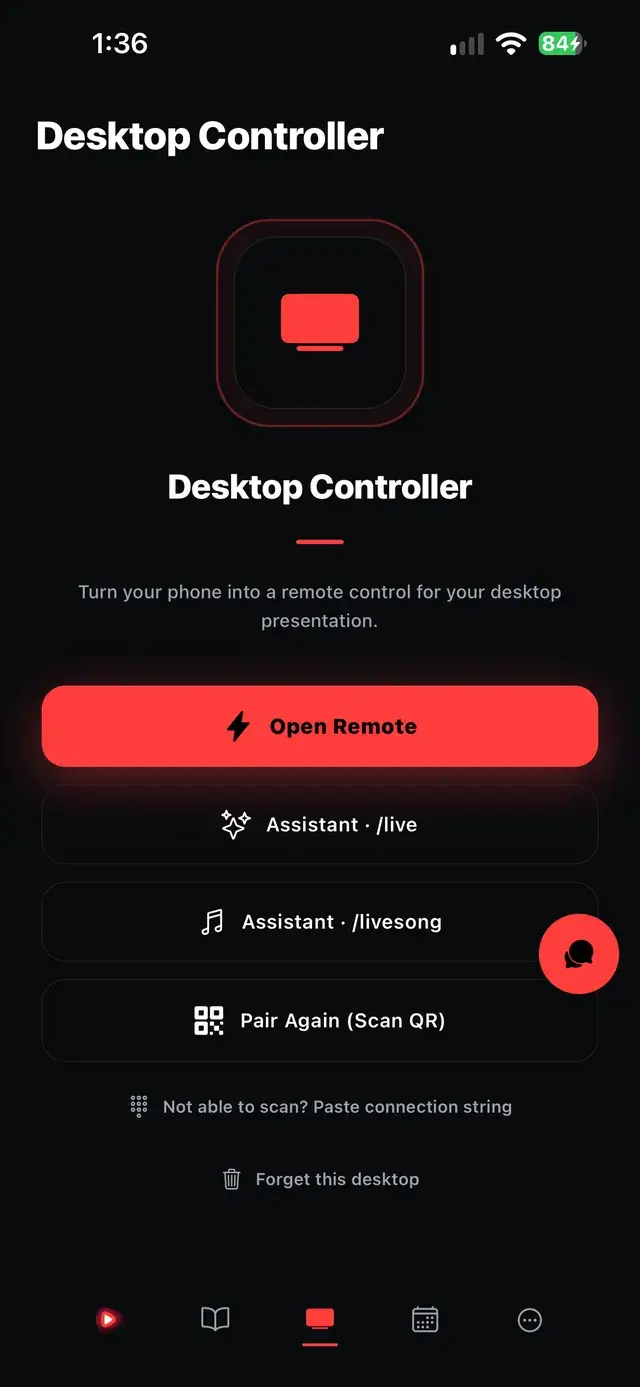
The same app is a full offline Bible
Pairing with the desktop as a remote and annotator is one thing this app does. On its own it is also a complete offline Bible, a lyric editor, an AI assistant, and the team's chat for the service, free, with no account required.
Bible reader
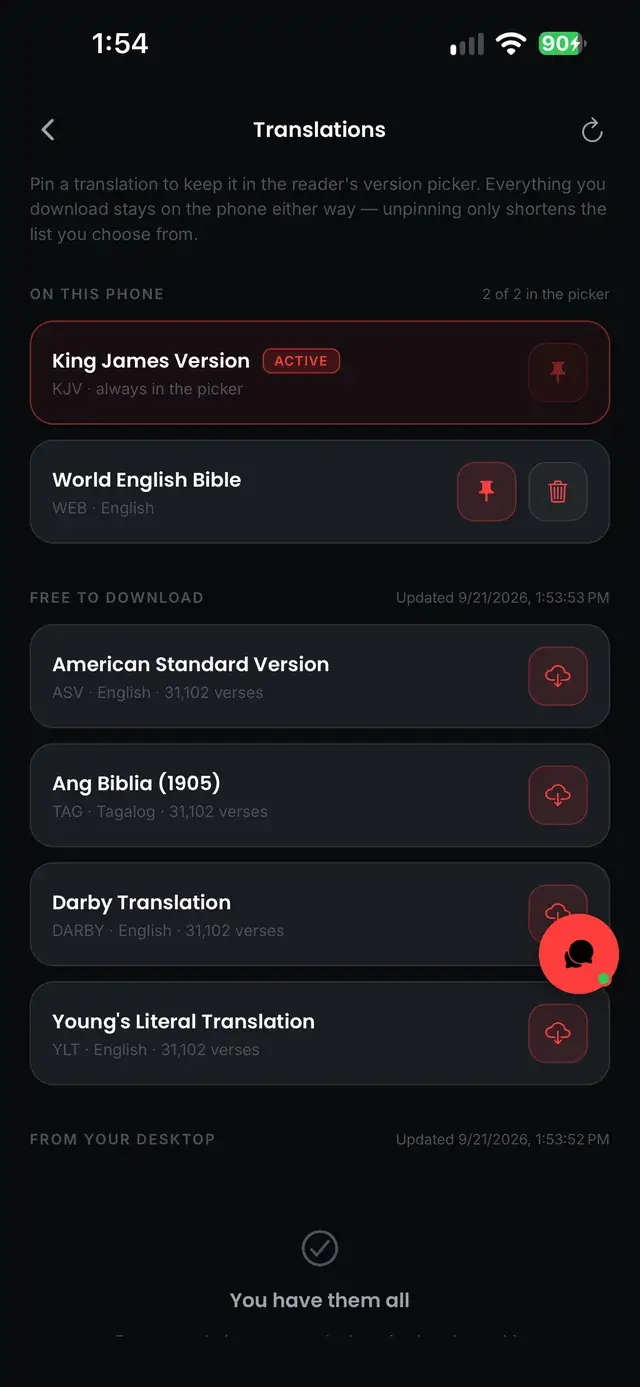
Translations
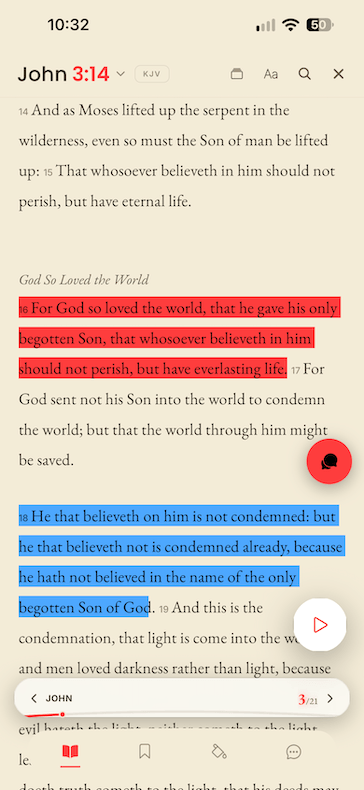
Highlights
Songs & chords
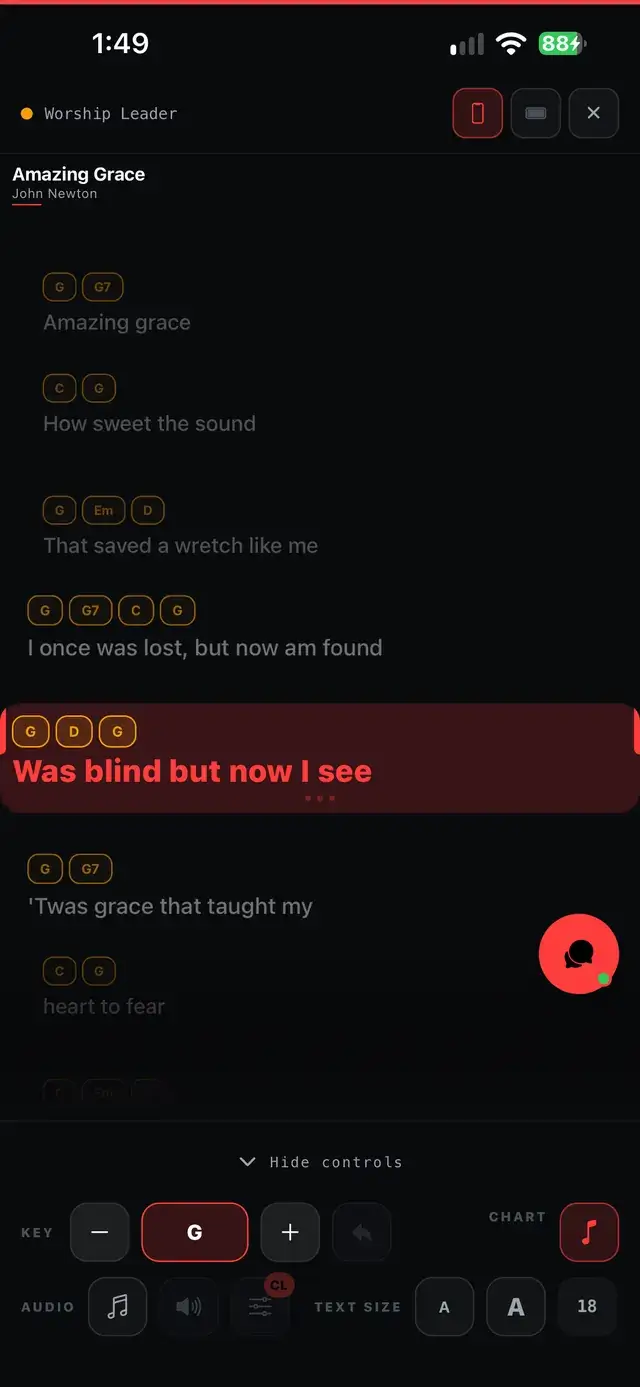
Lyric editor
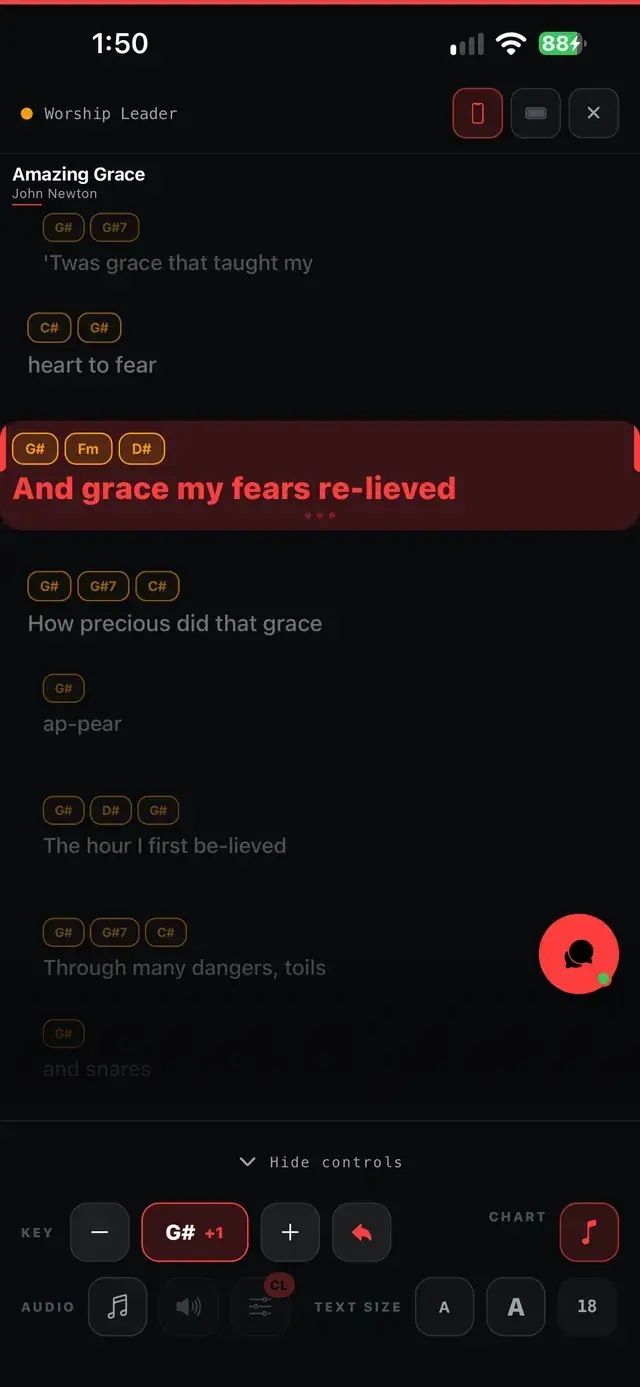
Cue the next line
Assistant
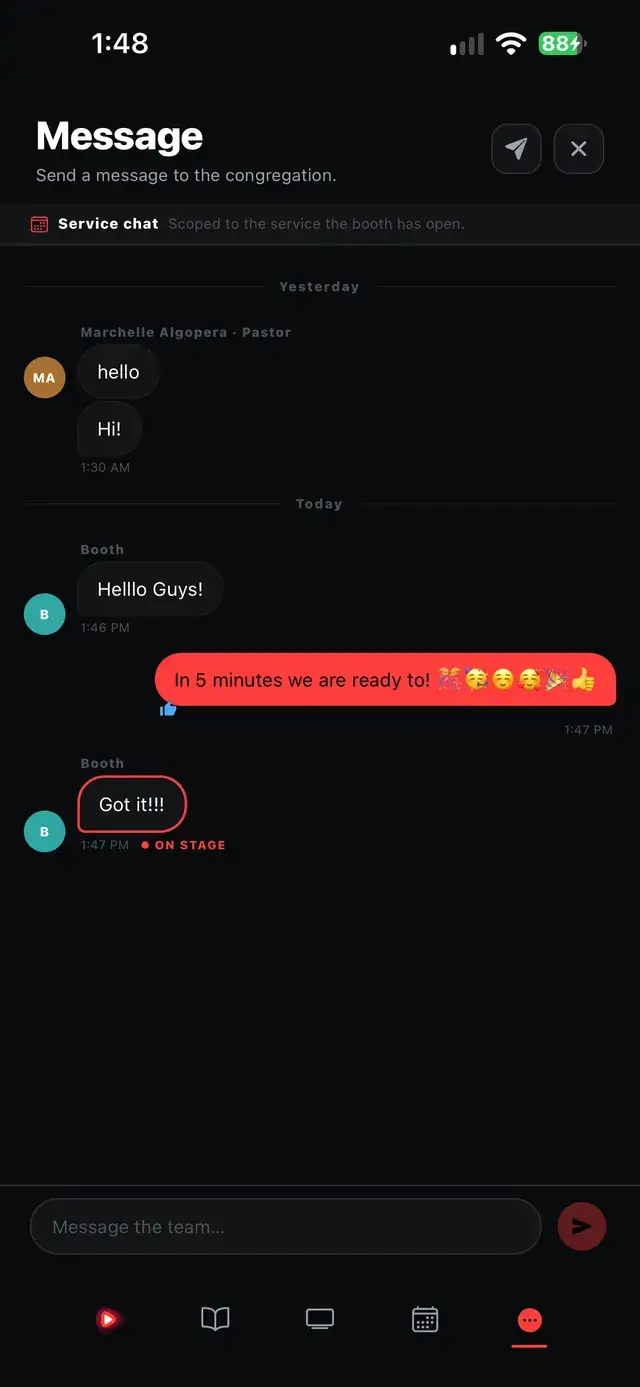
Service chat
Motion backgrounds
About this feature
The stroke is added to the presentation as a drawing element, exactly as if it had been drawn in the desktop slide editor, so it behaves like part of the slide rather than a temporary overlay.
Try it before next Sunday
Start Premium trial
Free for 30 days with every Premium feature: stage screen, extra outputs and broadcast. No card, and you keep the app on the Free plan afterwards.
Create account and start trialThree steps: create your account, start your 30-day Premium trial in one click, then download ChristChant and sign in. Every feature, no credit card.