Every church media team knows the moment. The missionary's update is on YouTube, the guest speaker sent a Vimeo link, and the sister church streamed their baptisms on Facebook. Then someone has to download the file, find it again on Sunday, or alt-tab to a browser while the whole room watches.
In ChristChant you paste the link onto a slide instead. When the slide goes live, the video plays right there on the main screen.
Paste a link, that is the whole setup
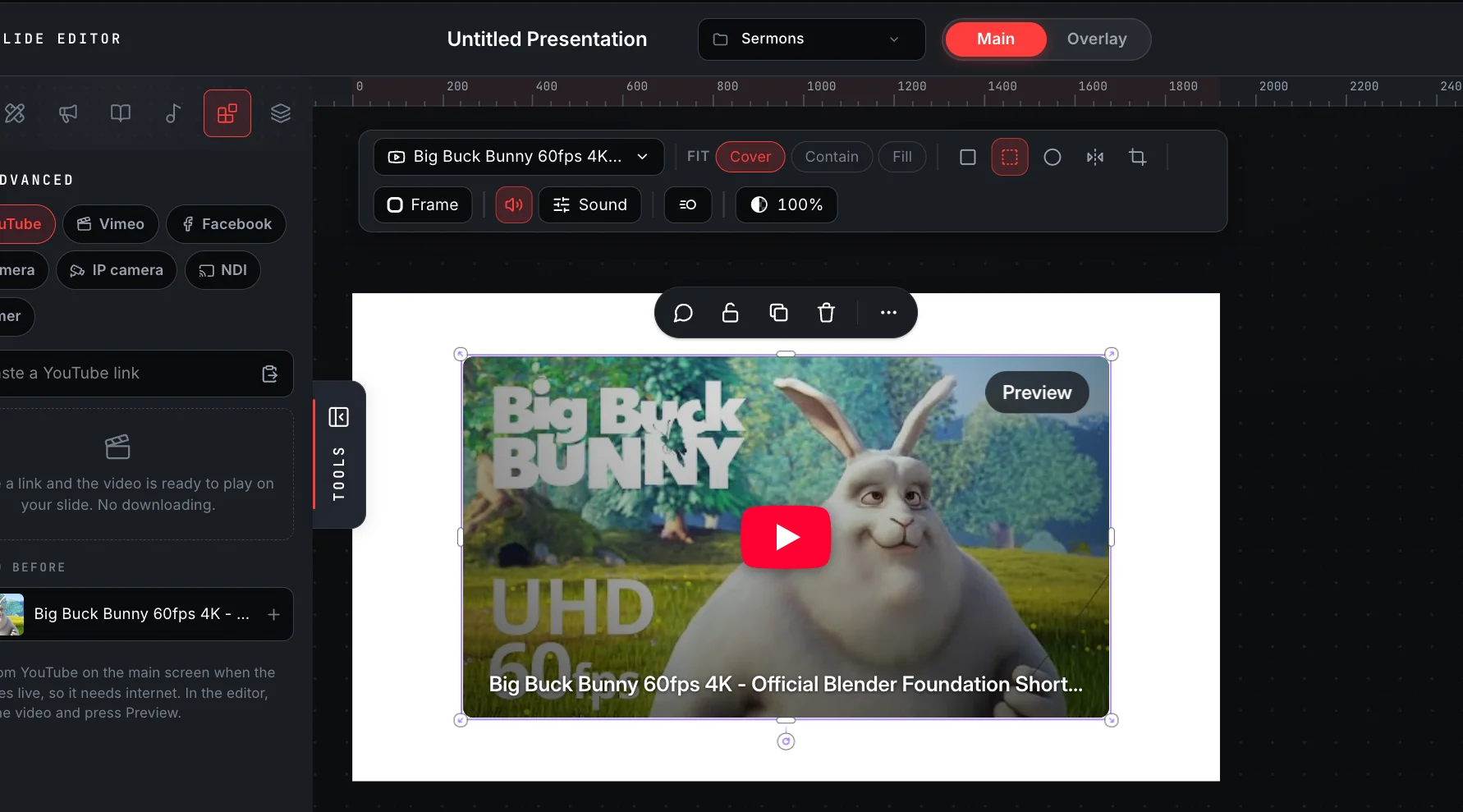
Open a slide in the editor, choose Advanced elements, and pick YouTube, Vimeo or Facebook. Paste the link and the video's picture and title appear so you can check it is the right one. Click Add to slide, or just press Enter.
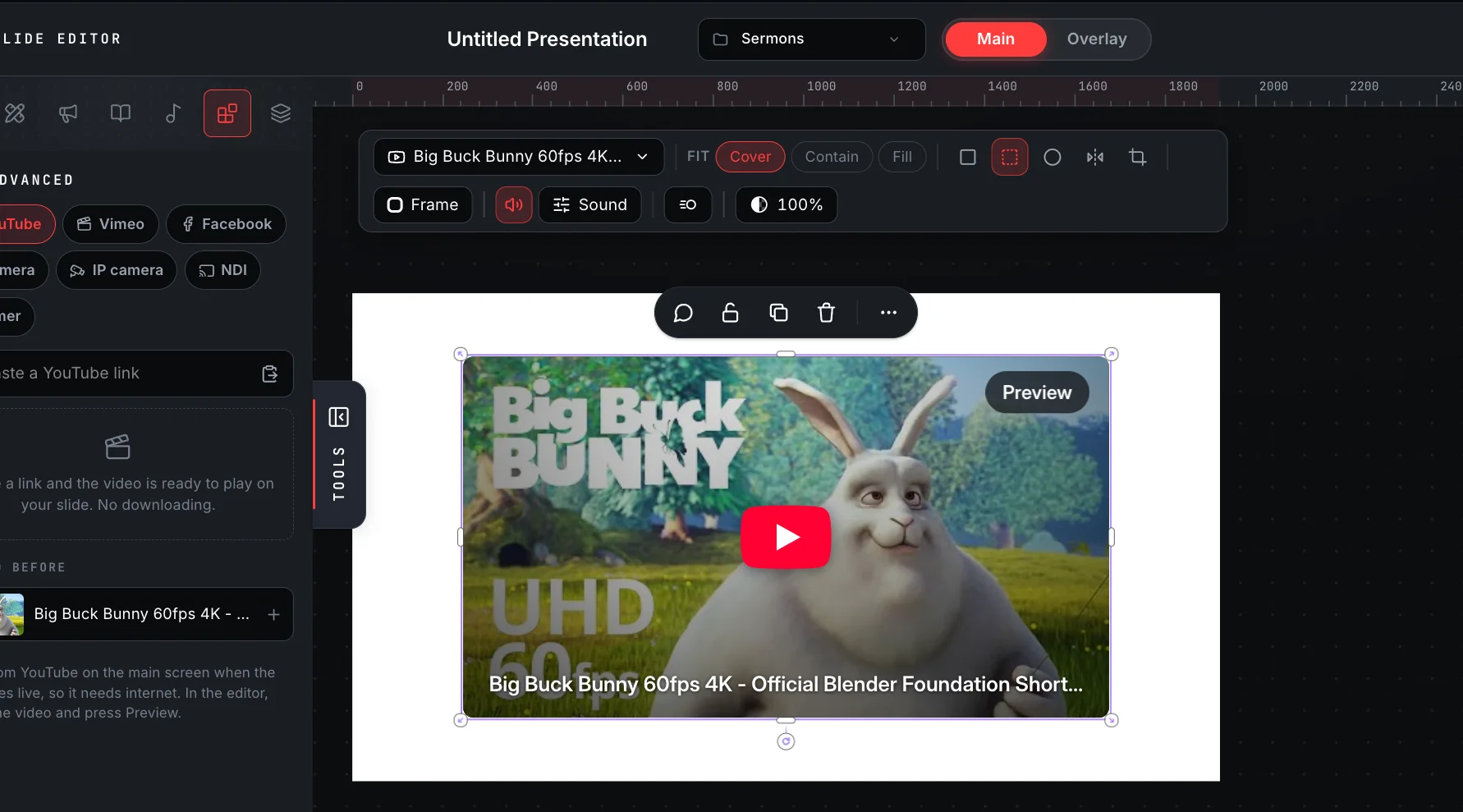
There is nothing to download and nothing to convert. The video stays where it is published and plays from there on the main screen when its slide is live.
Make it fit the moment
A video on a slide is an element like any other, so it sits where you want it:
- Cinema for a large picture with room around it
- Full screen when the video is the whole moment
- Corner to keep the words readable beside a smaller picture
- Bubble for a round picture of a speaker
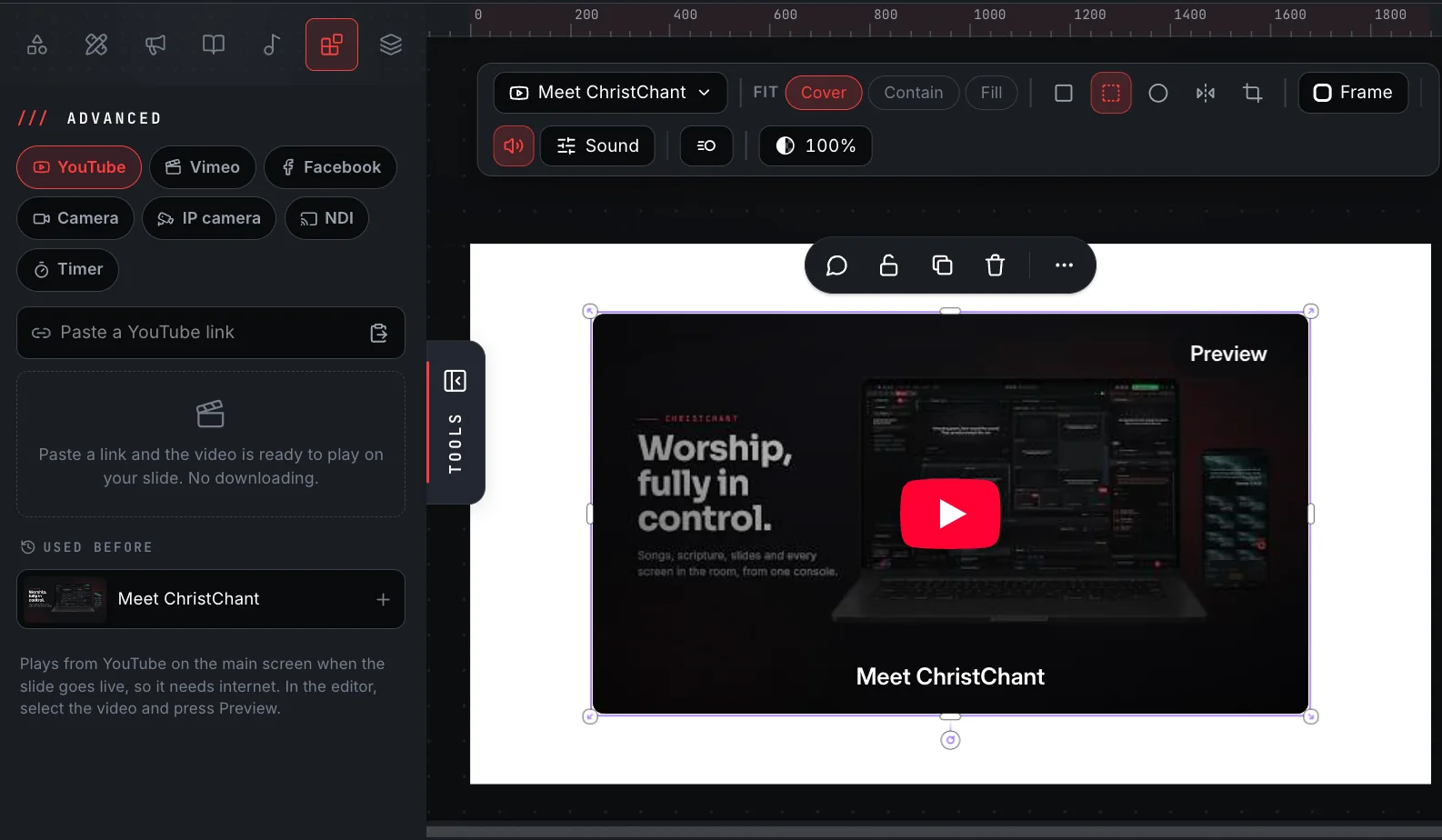
Drag it, resize it, give it a frame, and choose how it fills its box. For YouTube and Vimeo you can also set a start time to skip an intro, turn on looping and show captions. A YouTube video can stop at a time you choose, too.
Sound is set on the video itself: mute it or set its volume from its toolbar.
New: Facebook videos and lives
Many churches stream on Facebook, and their best moments live there. ChristChant now plays public Facebook videos and lives on a slide, the same way YouTube and Vimeo do: paste the link, add it, and it starts by itself when the slide goes live.
Facebook does not offer a start time, loop or captions, so those settings are not shown for a Facebook video. Only public videos and lives can play; anything private, friends-only or in a closed group will not.
Three habits for a calm Sunday
These are our suggestions, not product rules:
- Preview it during sound check. Press Preview on the video in the editor. You will know it still exists, is still public and starts where you expect.
- Have a plan for no internet. These videos play from the web. For a video you must not lose, download it with permission and play it from the Videos tab, which works offline.
- Check you may show it. A public video is not always free to play to a room. Ask the owner, or use your church's video licence.
Part of every plan
Video links on slides are part of the slide editor, which is complete on every plan, including the free tier. The full walkthrough, with screenshots, is in the help centre: Put a YouTube, Vimeo or Facebook video on a slide.
Ready to try it? Download ChristChant and add your first video to a slide.