
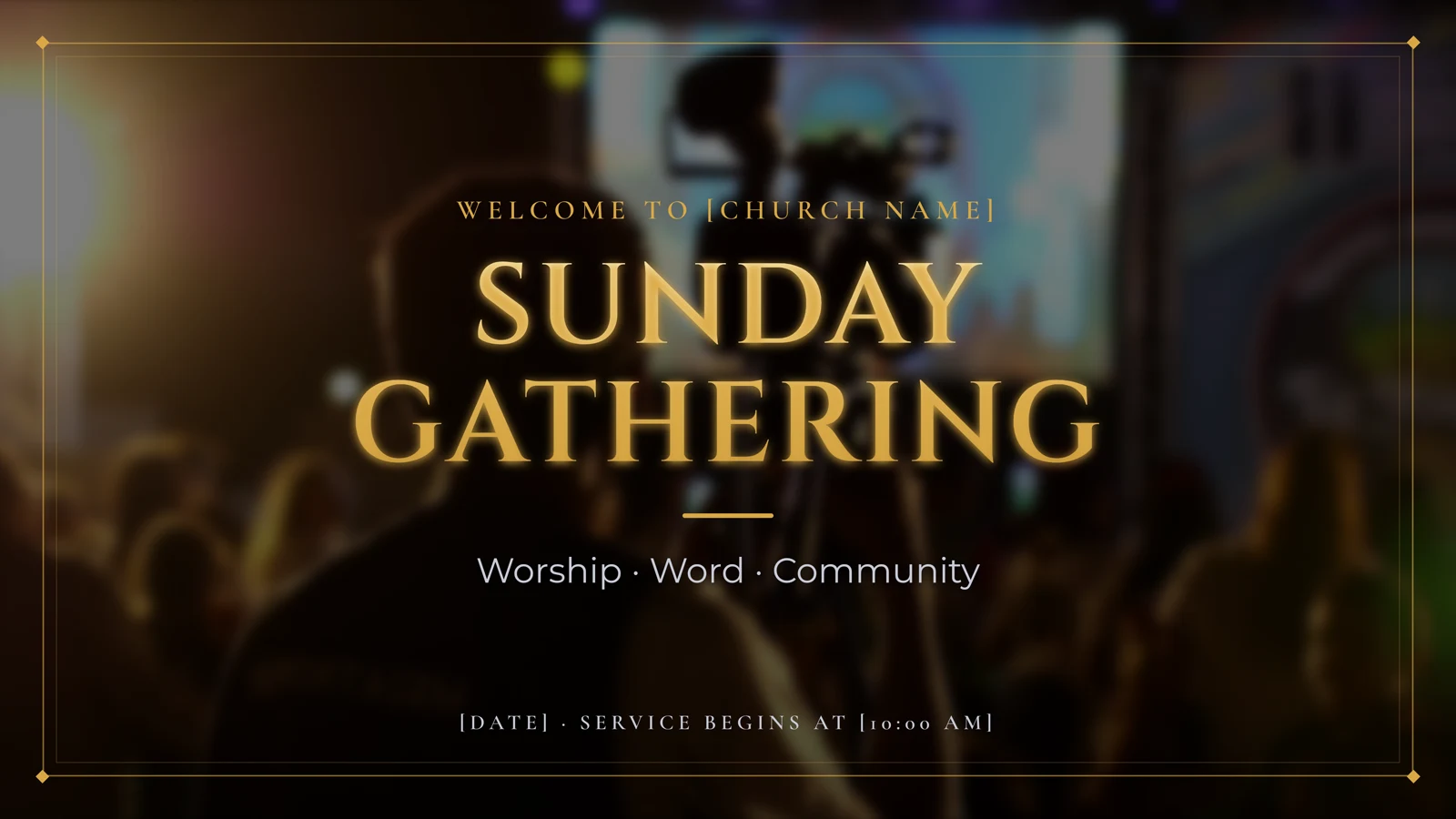
Your camera, behind any slide
Show people what is happening on the stage. Click Camera above the Master Output monitor and your camera replaces the slide's background while the words stay on top, for songs, Bible verses and presentations alike. No spare camera? Use a phone.
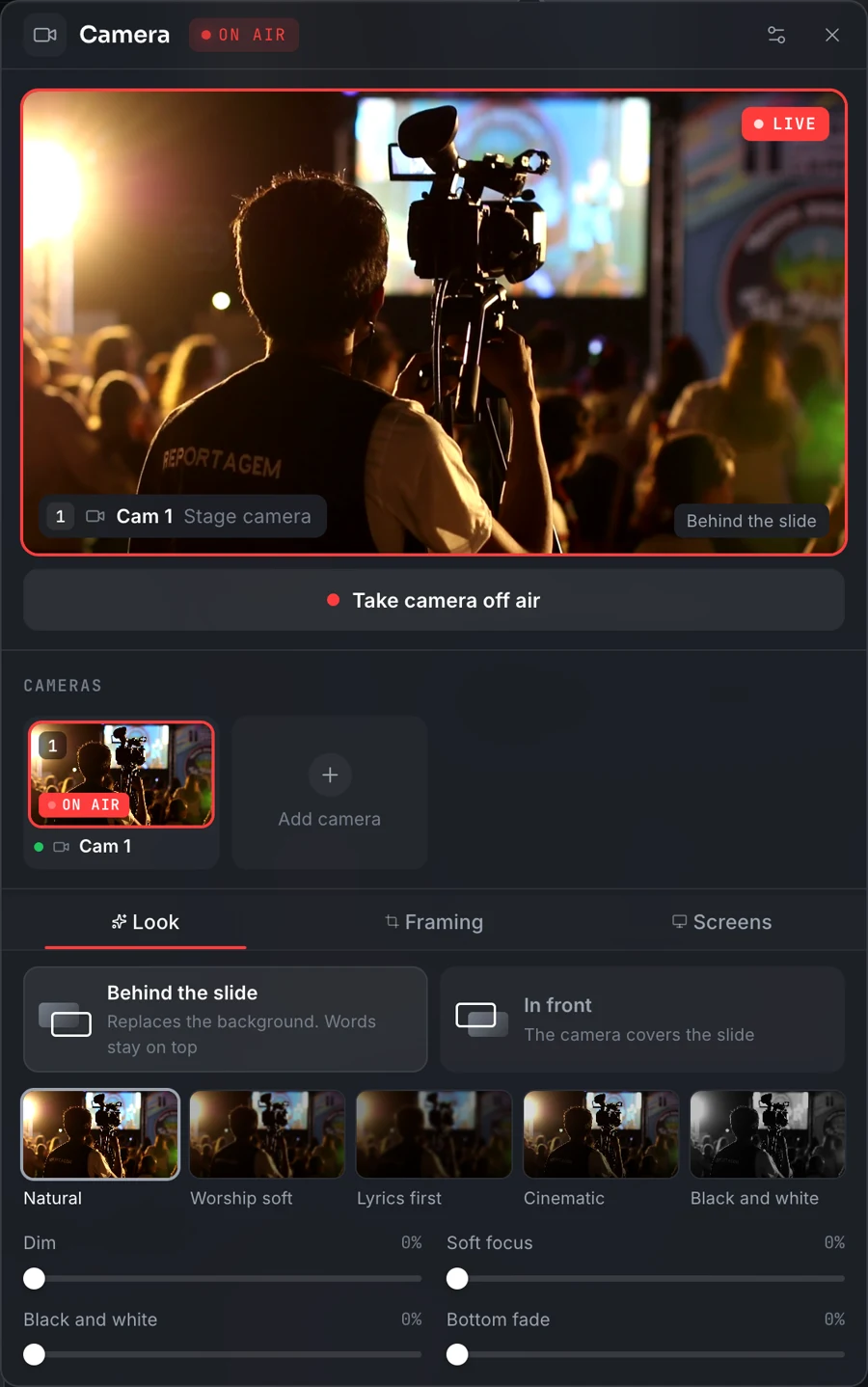
Behind the slide
The camera takes the place of the background. The lyrics, the verse or the slide text stay on top.
Five looks
Natural, Worship soft, Lyrics first, Cinematic or Black and white, then Dim, Soft focus and Bottom fade.
A phone is a camera
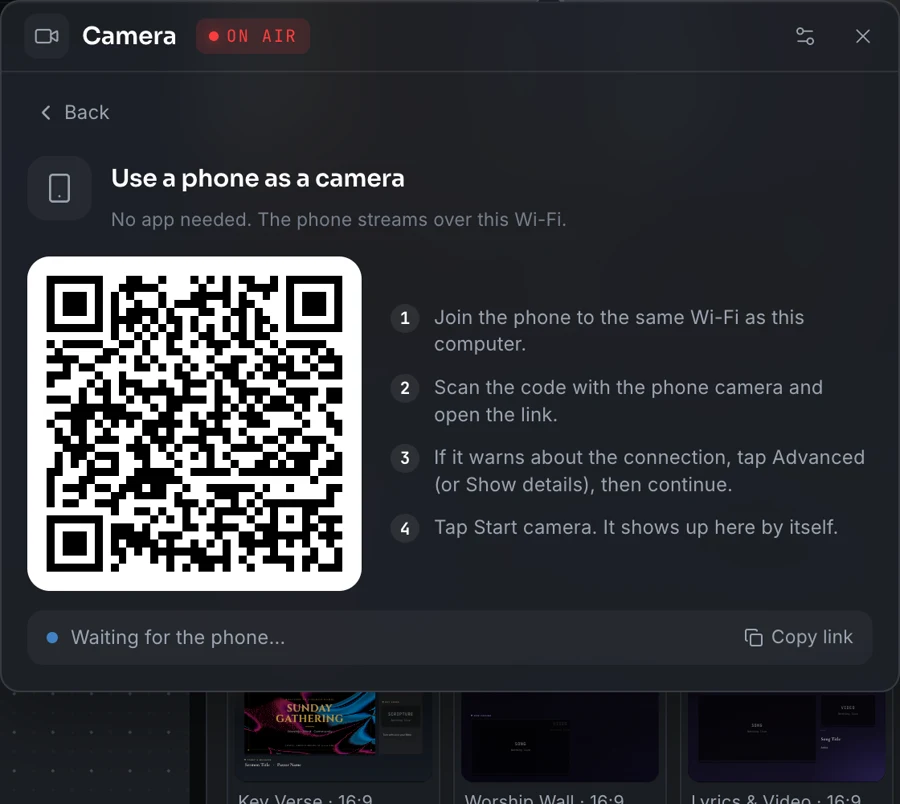
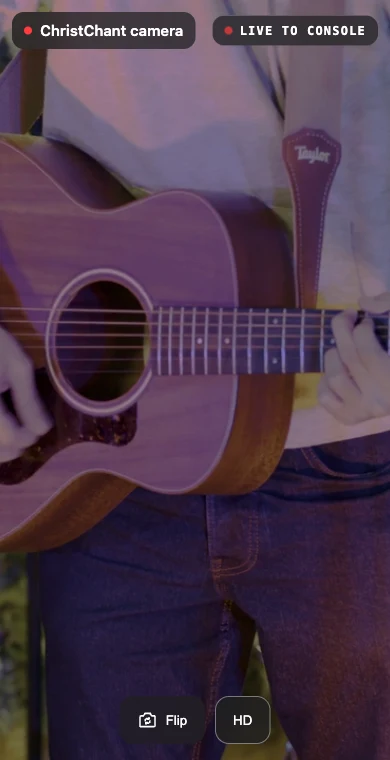
Scan a QR code on the same Wi-Fi and tap Start camera. No app to install.
Ready for the stream
A Broadcast layout with the camera full frame, the lyrics along the bottom and your logo in the corner.
The words stay easy to read
The Camera button sits above the Master Output monitor and is always there, whatever is live, so you can set your cameras up before the service starts. Choose Behind the slide and the camera replaces the slide's background. Pick a look made to keep every word readable, then fine tune it.
- Works for songs, Bible verses and presentations
- Looks: Natural, Worship soft, Lyrics first, Cinematic, Black and white
- Fine tune with Dim, Soft focus, Black and white and Bottom fade
- Set up your cameras before the service, whatever is on air
No spare camera? Use a phone
Click Phone camera and a QR code appears. Join the phone to the same Wi-Fi, scan the code and tap Start camera. The phone shows up in the panel by itself. Network cameras work too: click IP camera, paste its RTSP address and give it a name.
- No app to install on the phone
- The phone joins the panel by itself
- IP cameras by RTSP address, with a name you choose
- A camera login is kept encrypted on that computer only
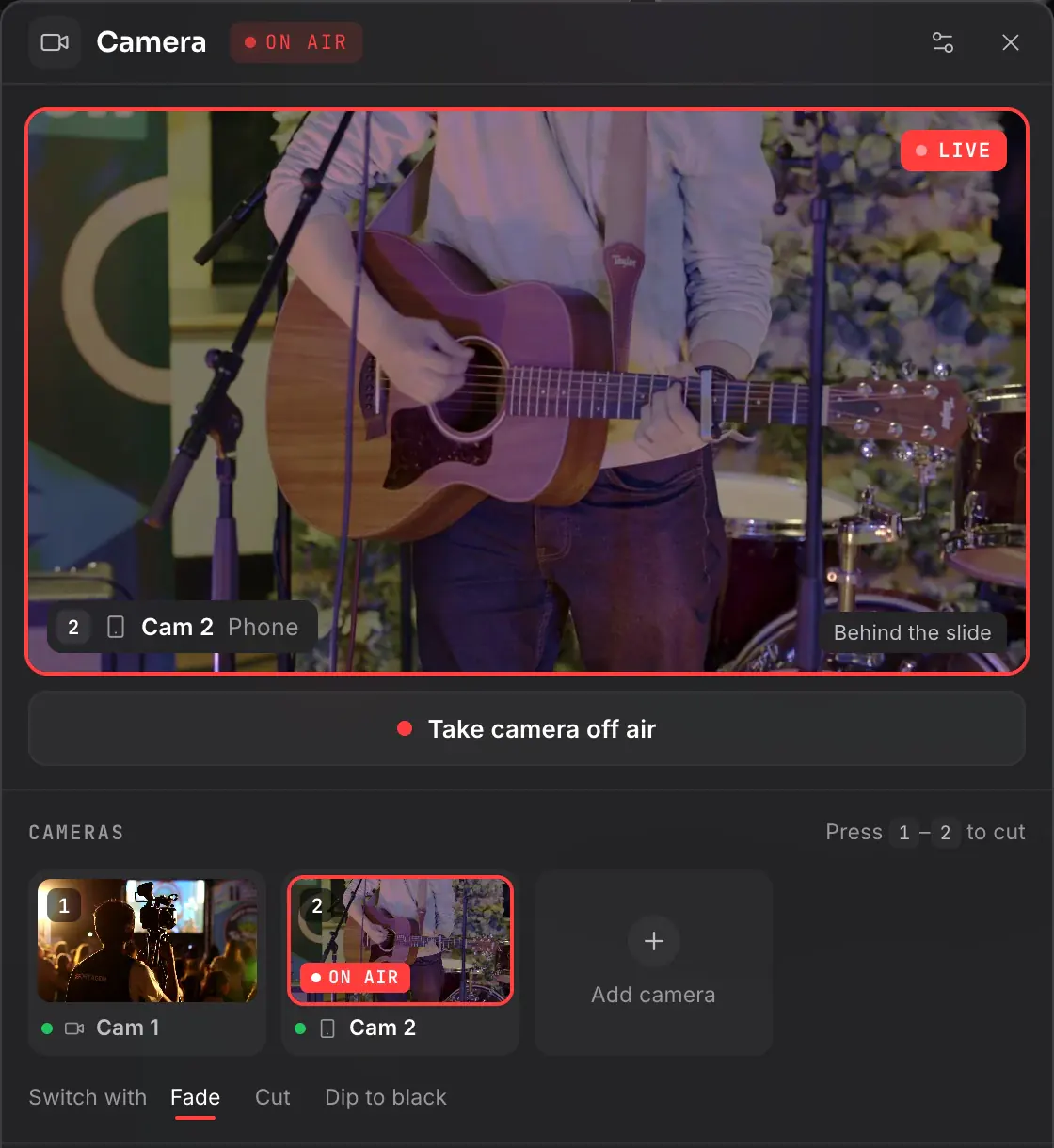
One key to cut
Add more cameras beside the first. Each one gets a number: press it, or click the card, to cut. The camera on air wears a red On air tag, and you choose how the cut looks.
- Press 1 to 9, or click a card, to cut
- A red On air tag on the live camera
- Fade, Cut or Dip to black
Camera, layout and template text
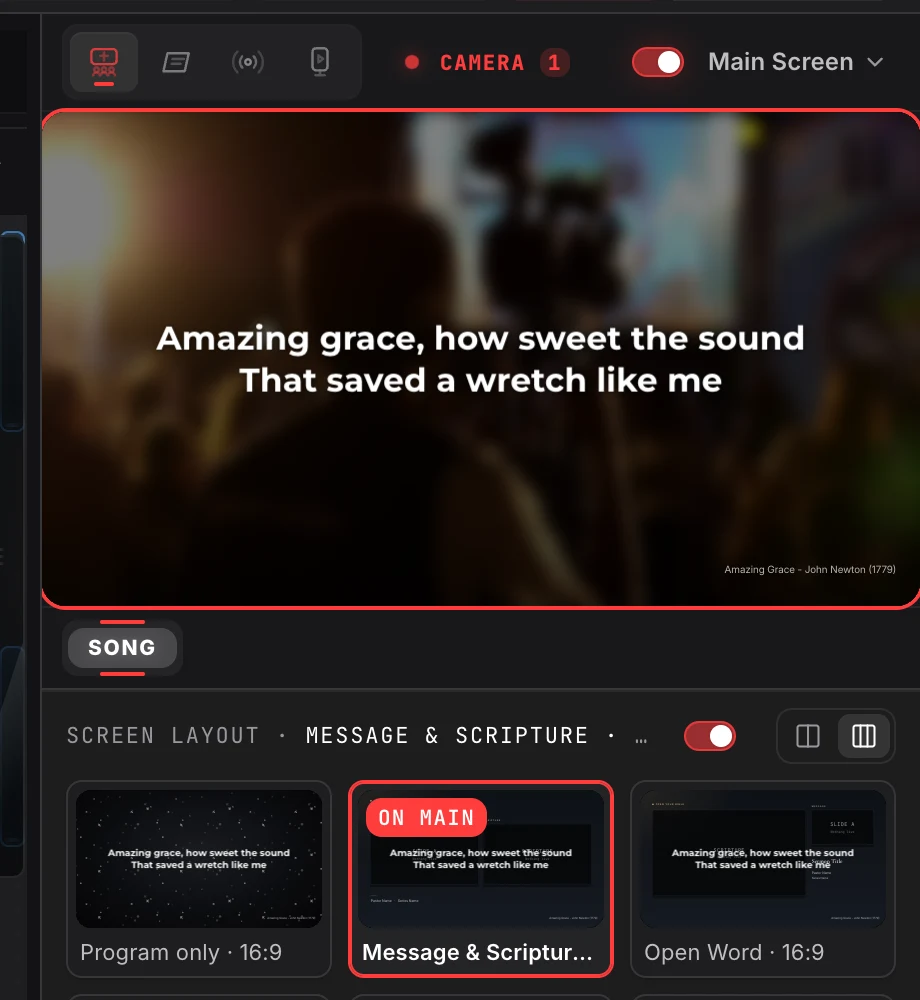
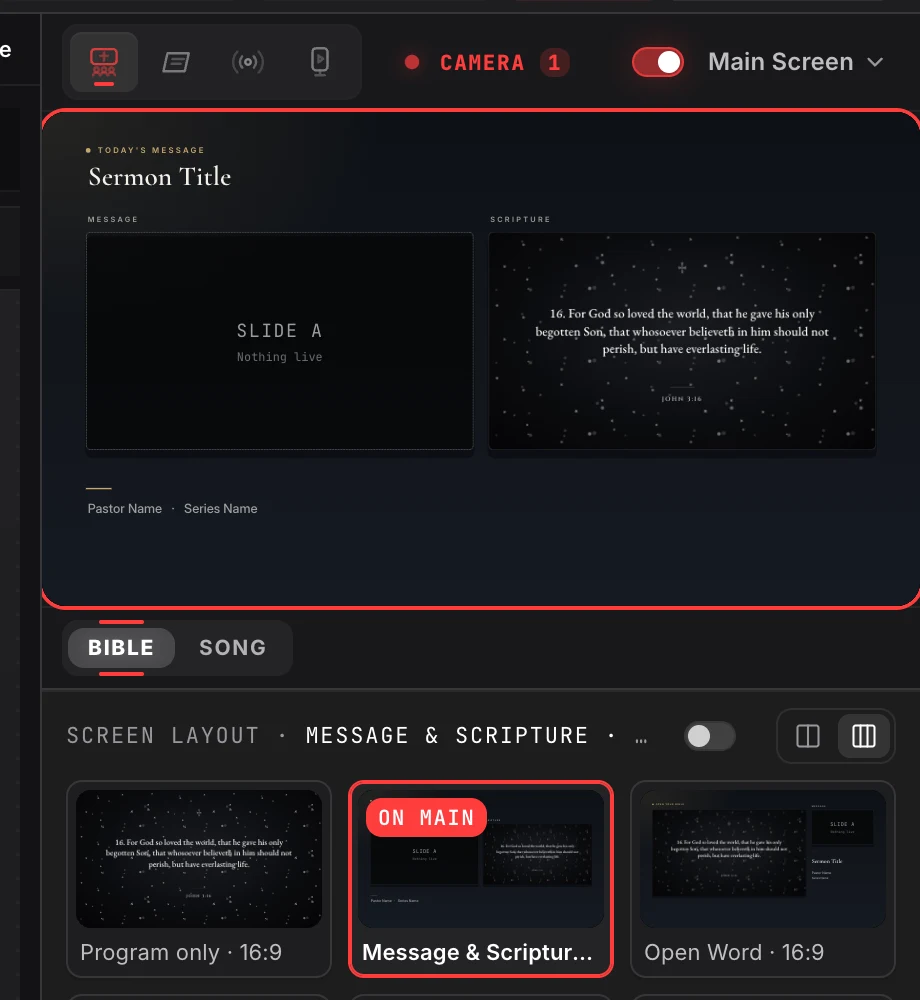
Using a pinned screen layout? The Text on layout switch beside the pinned cards decides what happens to the words, for lyrics and Bible verses alike. Switch it on and the words are forced on top of the layout in their template text, with the camera right behind them. Switch it off and the layout shows its own content.
- On: the words in their template text, over the camera
- Off: the layout shows its own boxes, like a Scripture box
- Works the same for lyrics and Bible verses
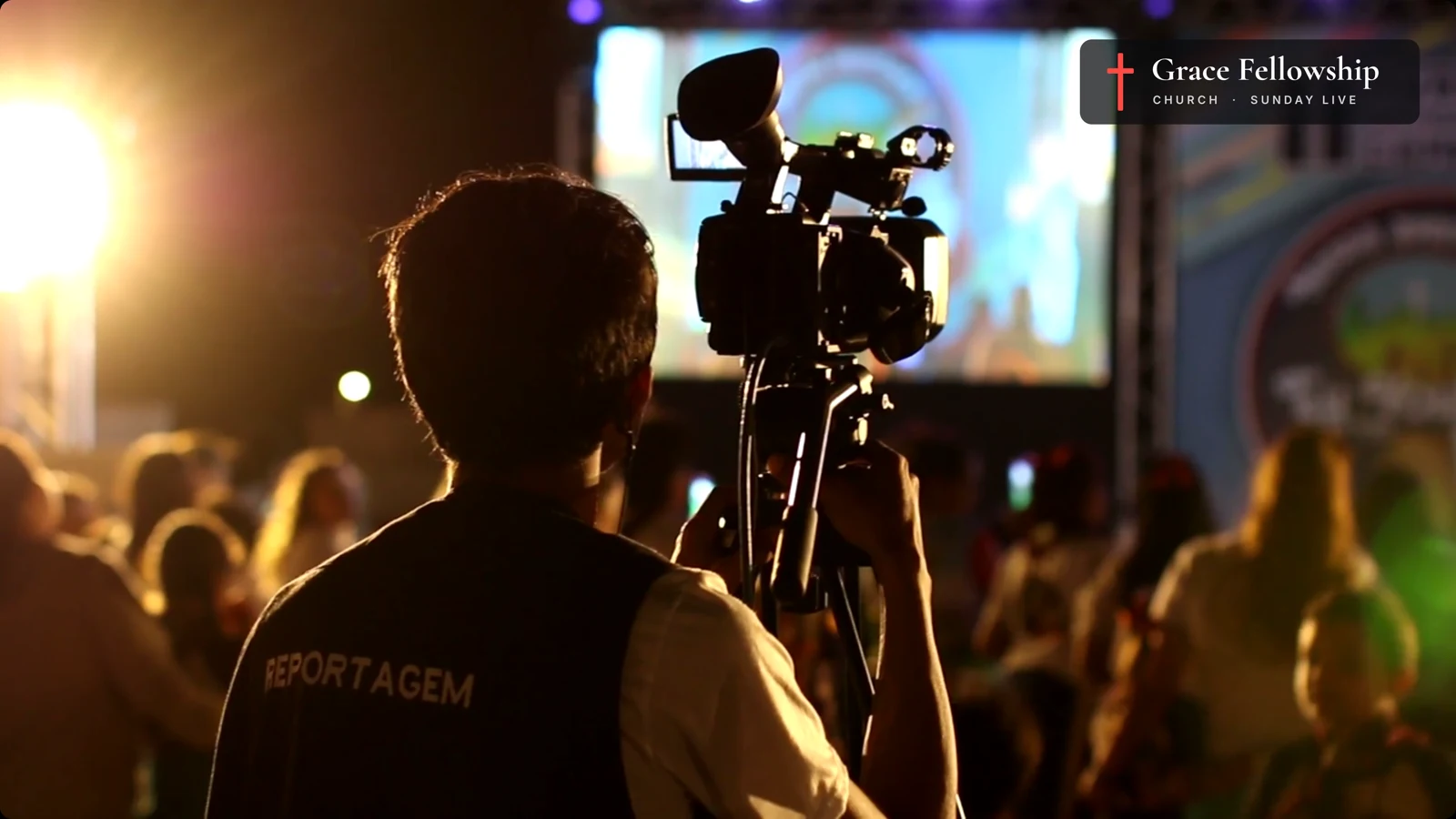
The stream, with your logo
Make a Broadcast layout whose canvas is the camera: add a Camera in the layout editor and choose Fill the canvas, then pin it to Broadcast and put it on air from its card. Send the Lyrics overlay and your church logo to Broadcast, and online viewers get the camera full frame with the lyrics along the bottom and your logo in the corner, while the room keeps its own screen.
- Camera full frame on the Broadcast screen
- Lyrics as a lower third over the camera
- Your church logo in the corner
- The room keeps its own screen
About this feature
Above the Master Output monitor in the console. It is always there, whatever is live, so you can set your cameras up before the service starts.
Try it before next Sunday
Start Premium trial
Free for 30 days with every Premium feature: stage screen, extra outputs and broadcast. No card, and you keep the app on the Free plan afterwards.
Create account and start trialThree steps: create your account, start your 30-day Premium trial in one click, then download ChristChant and sign in. Every feature, no credit card.