
See the whole room before Sunday
Venue is a live map of your church: every screen drawn at its real size and placed where it hangs, the stage, the people and the lights, in a flat plan or a 3D room you can walk through. Set it up once, keep a library of venues, and arrive knowing exactly what the congregation will see.
See the whole room
before Sunday.
Every screen drawn at its real size and placed where it hangs, with the stage, the people and the lights, in a flat plan or a 3D room you can walk through. More than one building, hall or service? No worries. Keep every venue in one library and switch between them as easy as 1, 2, 3.
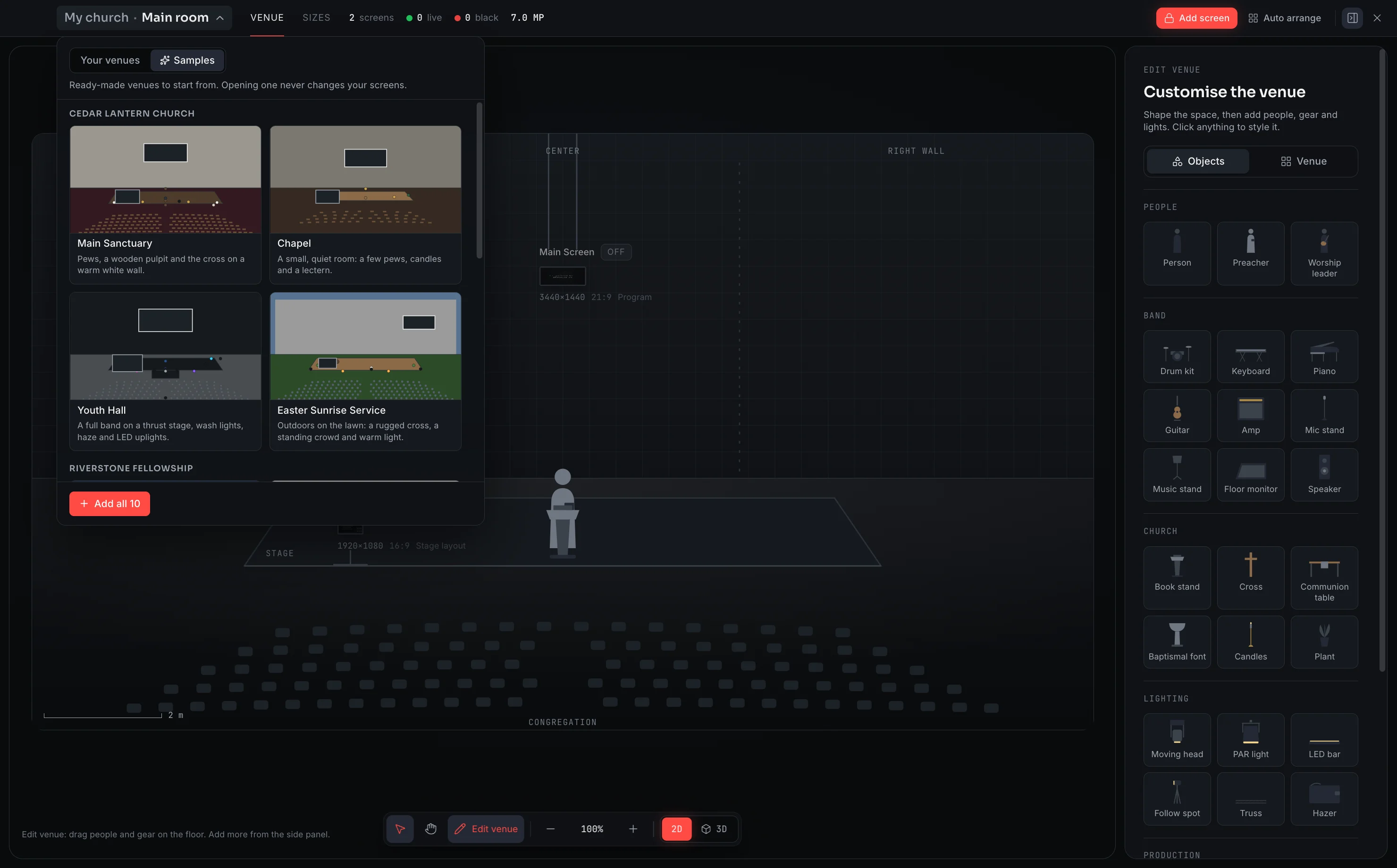
- 1 Open your venues
- 2 Pick the room
- 3 The map switches. Your screens stay as they are.
Venue in one minute
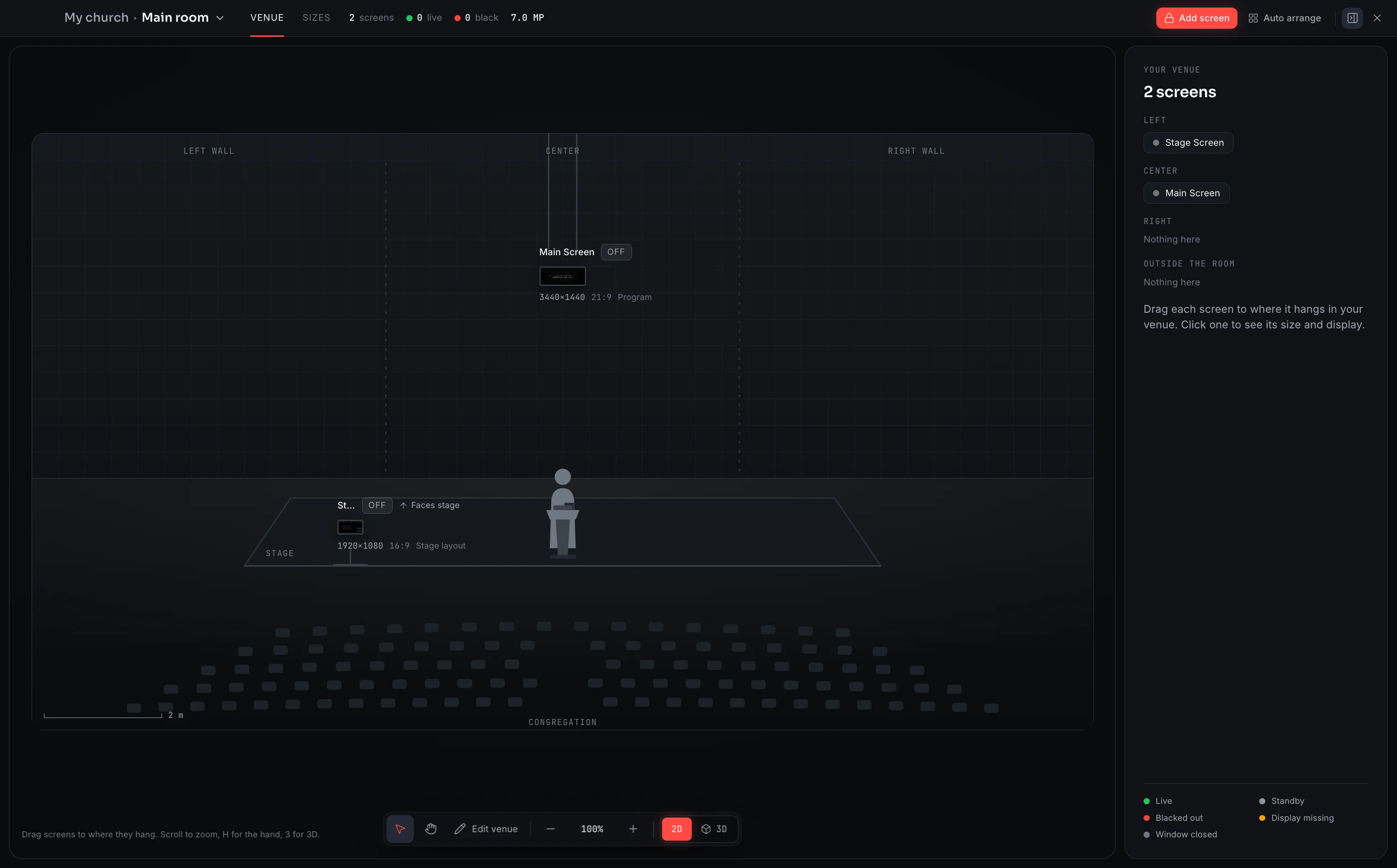
Walk the room in 3D, then lay it out in 2D: every screen where it hangs, at its real size.
Every screen, to scale
Enter the real width and height of each display in inches or metres. The map shows the true proportions, so a projector wall and a 55-inch TV are never confused.
2D plan and 3D walk-through
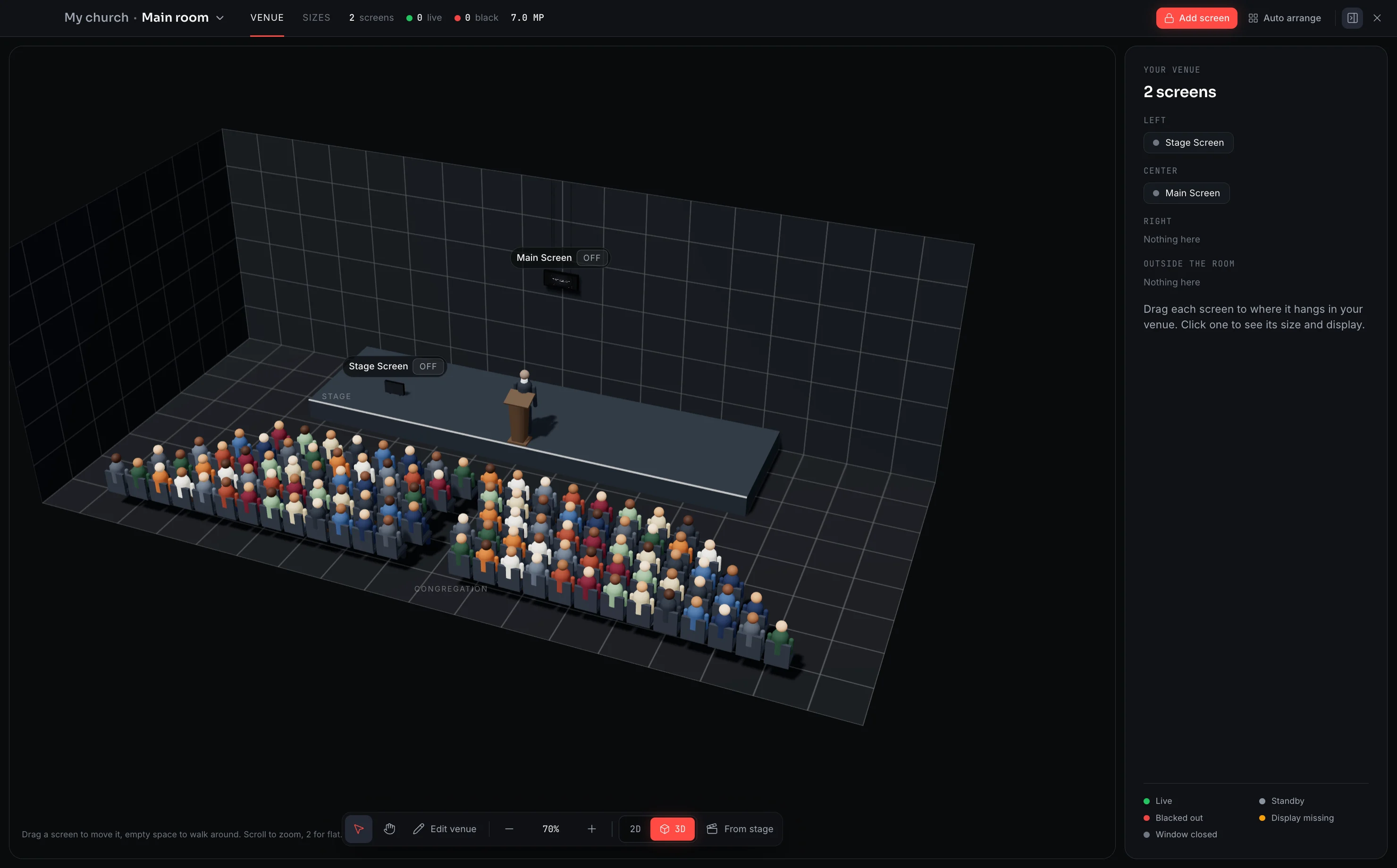
Flip between a flat plan and a 3D room. Drag to look around, scroll to zoom, and check sight lines from the back row before anything is installed.
People, gear and lights
Place the band, the pulpit, the sound desk and the lights in the room. Everyone on the team sees the same layout, and nothing has to be explained twice.
A library of venues
Keep one venue per building, hall or service. Start from one of the sample churches or import a venue someone else built, then switch between them in a click.
Every screen where it actually hangs
Each screen is a block drawn to its real size, dropped onto the plan where it sits in the room. The main congregation screen, the stage monitors and the side walls all show up together, so you can see at a glance what the room is made of.
- Drag a screen to where it hangs, and the position is saved
- Real width and height in inches or metres
- Click any screen for its size, resolution and output setup
- Zoom and pan across the whole room
Walk the room in 3D before you go in
Switch to the 3D view and move through the room as a person would. Stand in the back row and see whether the lyrics are readable. Turn the stage screen to face the band, and check the angle before the cables are run.
- Drag to walk around the room, scroll to zoom
- Stage screens can be angled in X, Y and Z
- Check sight lines from every row
- Switch between 2D and 3D with one click
Shape the room, then fill it
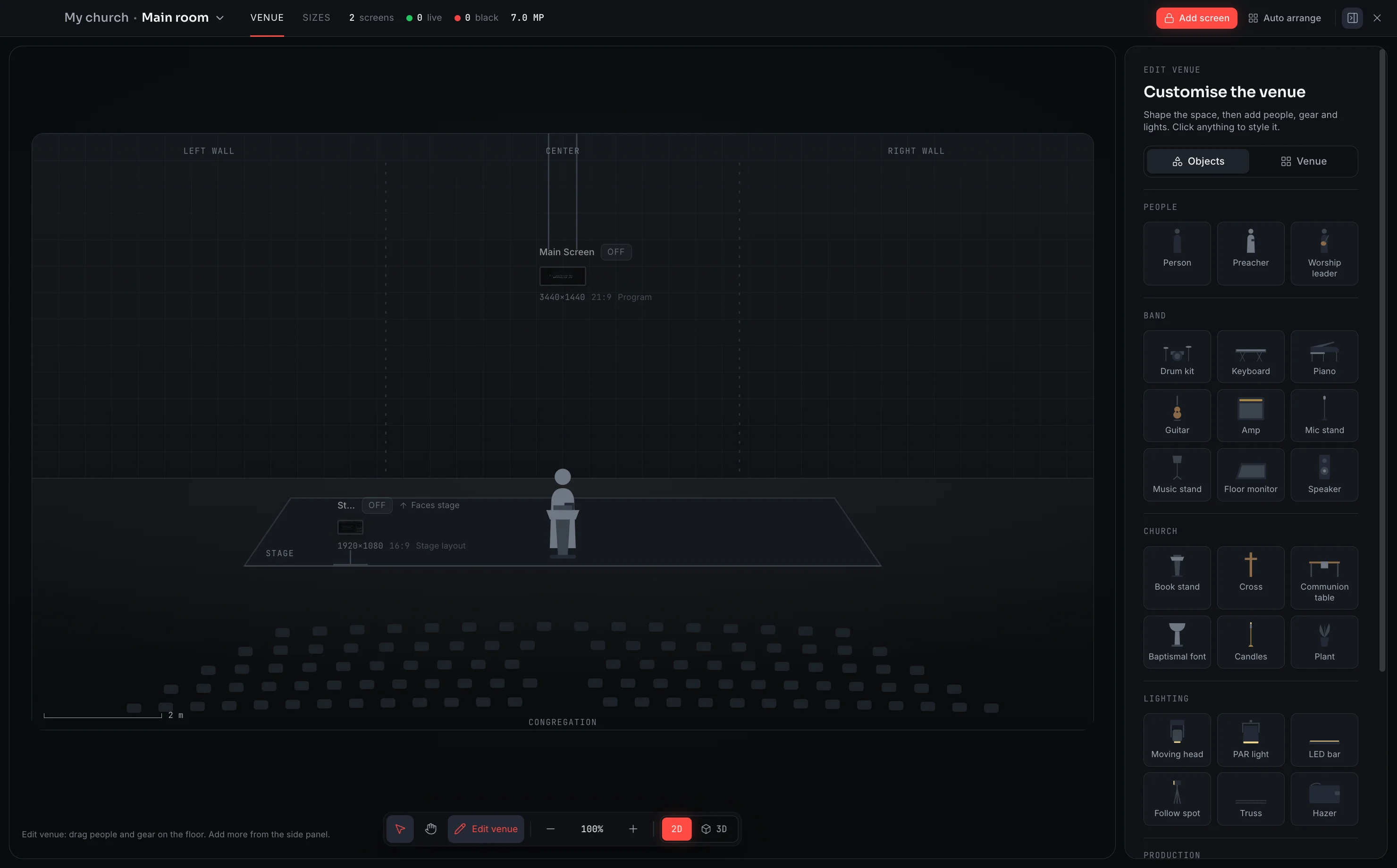
Edit the room to match the real walls, aisles and platform, then add the people, the gear and the lights. The layout becomes a plan the whole team can read, not a sketch on the back of an order of service.
- Set the room size and shape
- Place the band, pulpit, sound desk and lights
- Add a screen to the room in a few clicks
- Move any screen or piece of gear to test a new layout
One venue per building, switched in a click
Each venue remembers its map, its room, its people and gear, and the output setup for every screen: resolution, fit, crop and edge blend. Keep a venue for the main hall, another for the youth room, and an Easter layout ready to go.
- Start from a sample church, or from a blank room
- Import and export a venue as a file to share it
- Switch venues, and every screen follows
- Physical displays are chosen on site, so a venue travels with you
About this feature
No. Venue shows where your screens are and how big they are. What each screen displays is still set in Screens and in the Flow, so the map never changes the service.
Try it before next Sunday
Start Premium trial
Free for 30 days with every Premium feature: stage screen, extra outputs and broadcast. No card, and you keep the app on the Free plan afterwards.
Create account and start trialThree steps: create your account, start your 30-day Premium trial in one click, then download ChristChant and sign in. Every feature, no credit card.